Comma Delimited List Converter
Paste one item per line and get a comma-separated list (or the reverse), with quotes, sorting and duplicate removal if you need them.
The Comma separator turns a column of items into a comma delimited list, and turns a comma delimited list back into one item per line. Paste your items, pick a direction, and the result updates as you type or change an option.
The tool runs entirely in your web browser. Files are read and processed on your own device, nothing is uploaded, and no account or sign-up is needed. It is free to use.
Common uses include turning a spreadsheet column into a list for an email, a code snippet or a database query, and reversing that process when you need each value on its own line again.
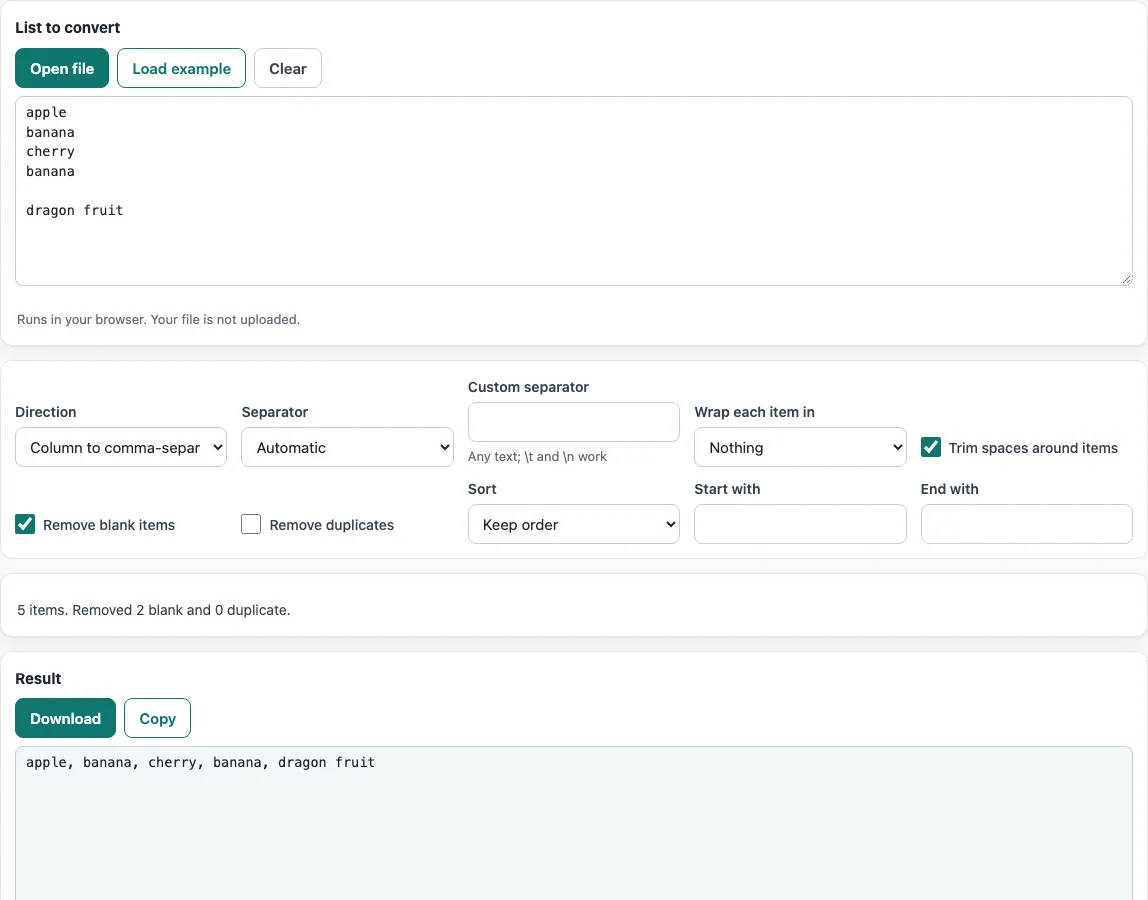
How to use the Comma separator
- Paste your items into the input box, one item per line. You can also press Open file or drop a file on the box. To try the tool first, press Load example. Press Clear to empty the box.
- Choose a Direction: Column to comma-separated list or List to one item per line.
- Choose a Separator. The default, Automatic, uses a comma and a space when making a list; when splitting a list back into lines it splits on commas, semicolons, pipes, tabs or line breaks. Other choices are Comma, Comma and space, Semicolon, Pipe, Tab, New line, Space and Custom.
- Under Wrap each item in, choose nothing, single quotes or double quotes.
- If you need text around the whole list, type it into Start with and End with.
- Choose a Sort option: keep order, A to Z, Z to A, or Natural.
- Turn on Remove duplicates if you want each item to appear once. It is off by default.
- Check the result and the item count, then press Copy or Download.
Trimming spaces around items and removing blank items are on by default. Your option choices are kept in the page address, so a bookmarked or shared link reopens the tool with the same settings. Your data itself is never added to the address.
How do I turn a column into a comma-separated list?
Paste the column with one item per line, set the direction to Column to comma-separated list, and keep Separator on Automatic (comma and space) or pick another. The result joins every item into a single line, with each item separated by a comma and a space.
Each line counts as one item. Before joining, the tool trims spaces around each item and removes blank items, so stray spaces or empty rows in a spreadsheet do not end up in the list. Items keep their original order unless you choose a sort option. If you set Wrap each item in to single or double quotes, each item is enclosed in those quotes. A quote character inside an item is doubled, which is the standard way to keep it from ending the item early.
How do I make a list for a SQL IN clause?
Set Wrap each item in to single quotes, set Start with to (, and set End with to ). The tool then produces a list you can place after IN in your query.
Text values in SQL usually need quotes, and the list must be wrapped in parentheses. For example, the lines apple, banana, apple, a blank line and cherry, with comma and space, single quotes, Remove duplicates on, and the start and end brackets set, produce ('apple', 'banana', 'cherry'). The tool reports 3 items, 1 blank removed and 1 duplicate removed. If your values are numbers, you can usually leave the wrap option set to nothing.
How do I split a comma-separated list back into lines?
Set Direction to List to one item per line. With Separator on Automatic, the list is split at every comma, semicolon, pipe, tab or line break, so red, green; blue gives three lines. Items in quotes stay whole even when they contain the separator, so "Smith, Jane", Lee gives two items, and the surrounding quotes are removed. If Start with and End with are set, they are stripped from the ends of the list first, which turns a pasted SQL list such as ('a', 'b') back into a column.
Frequently asked questions
How do I split a comma-separated list into lines?
Set Direction to List to one item per line and keep the separator on Automatic. The tool splits the list on commas, semicolons, pipes, tabs or line breaks. Quoted items that contain the separator stay whole.
Can I remove duplicates from a list?
Yes. Turn on Remove duplicates, which is off by default. The result then shows how many duplicates were removed in the item count.
Is my data uploaded anywhere?
No. The tool runs in your browser, and files are read and processed on your device. Nothing is uploaded.
Is the comma separator free, and do I need an account?
It is free, and you do not need an account or sign-up to use it.
What happens to quotes inside an item?
If you wrap items in single or double quotes, any matching quote character inside an item is doubled. This keeps the quoted item valid in the output.
Can I use the results for commercial work?
Yes. You may use the results for any purpose, including commercial work, and no attribution is required.
Can I use a separator other than a comma?
Yes. Choose Semicolon, Pipe, Tab, New line or Space, or choose Custom and type any text; \t stands for a tab and \n for a line break.
Related tools
- CSV viewer: Use it to look at a CSV file as a table before you change its data.
- CSV editor: Use it when you need to change the values inside a CSV file.
- Text to CSV: Use it when your plain text needs to become CSV rows.
- TSV and CSV delimiter converter: Use it when your data is separated by tabs and you need commas, or the reverse.
- CSV formatter: Use it to tidy the layout of a CSV file.
- CSV to SQL: Use it when your CSV data needs to become SQL statements.