Compress CSV
Open a CSV file or paste text, tidy it if you like, then download a smaller .csv.gz or .zip. The file never leaves your browser.
Compress CSV is a free csv compressor that packs a CSV file into a .csv.gz (gzip) or .zip archive. It runs in your browser, so you open or paste your data, and the tool shows the original size, the compressed size and the percentage saved before you download the result. Use it when a CSV is too large to send, store or upload comfortably and you want a smaller copy.
The tool can also tidy the data before it compresses the file, which can make the archive smaller still. You choose the output type and any cleanup options on the page, and the results update as you change them.
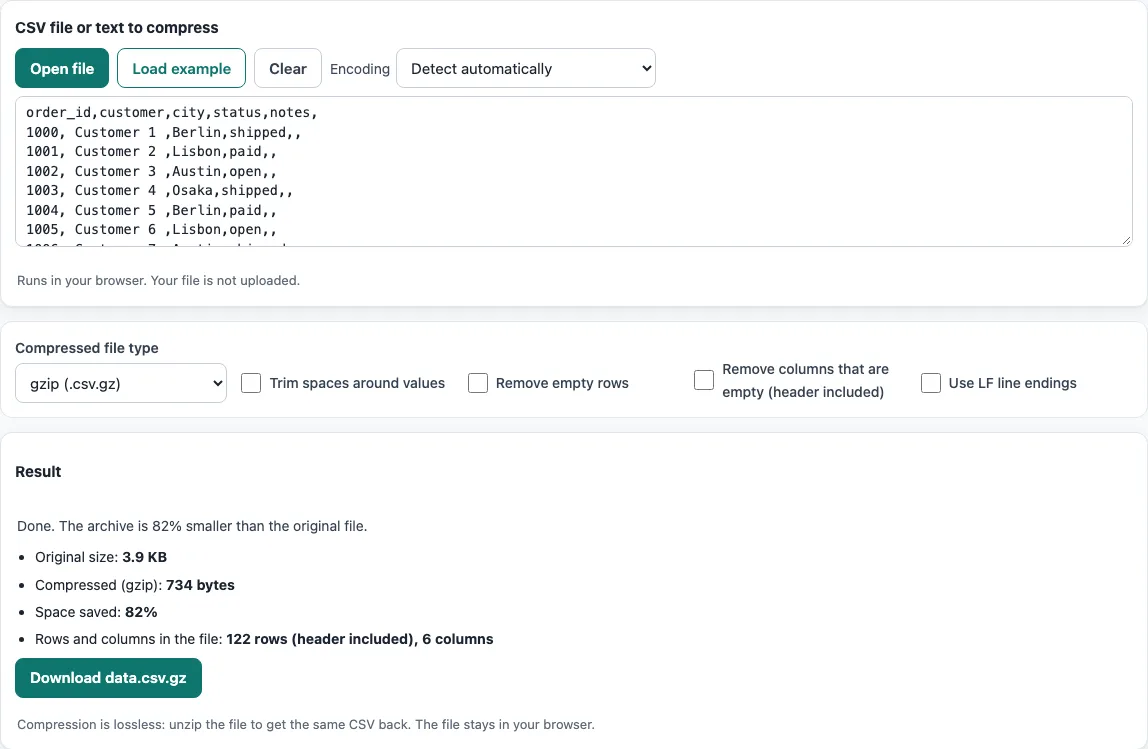
How to use the Compress CSV tool
- Load your data. Click Open file, drop a file onto the CSV file or text to compress box, or paste text into it. To try the tool first, click Load example.
- Pick a Compressed file type. gzip (.csv.gz) is the default. Choose ZIP (.zip) if the recipient expects a zip file.
- Decide on the tidy-up options. All four tick boxes are off by default: Trim spaces around values, Remove empty rows, Remove columns that are empty (header included) and Use LF line endings. Tick only the ones you need.
- Read the result list. It shows Original size, After tidy-up (only when an option changed the text), Compressed (gzip) or Compressed (ZIP), Space saved, and Rows and columns in the file.
- Click Download with your file name. The button saves name.csv.gz for gzip, or name.zip for ZIP. The name comes from your opened file, or is called data when you pasted text.
Click Clear to start over. The Encoding list is set to detect automatically by default, and you can change it if your text looks wrong. The tool stores your settings in the page address, so you can bookmark or share the link to get the same setup back.
How much smaller does a CSV get when compressed?
A CSV often shrinks well when compressed, because it repeats the same commas, words and column patterns on every line. Compression finds those repeats and stores them once. The exact amount depends on the data, so the tool measures each file and shows the real Space saved percentage rather than a promise.
The built-in example makes the effect clear. Its data has 122 lines, six columns and 4,029 bytes. With all tick boxes off, gzip reduces it to 734 bytes, which is 82% saved. With all four tick boxes on, the tidy-up trims 120 cells and removes one empty row and one empty column, leaving 3,662 bytes. gzip then gives 713 bytes (82% saved). Tidying first helps a little more because there is less text to store.
Very small files may not get smaller at all. An archive has a fixed amount of overhead, so a file of only a few lines can end up the same size or larger. In that case the tool shows a note that the file is too small to shrink.
Should I use gzip or zip for a CSV?
Use gzip (.csv.gz) for a single CSV file unless someone asks for a zip. gzip is designed to compress one stream of data, and it adds very little around the file, so the result is usually the smallest. In the same example, gzip produced 713 bytes while ZIP produced 809 bytes, about 80% saved.
ZIP is a little larger because it stores extra information with the file, including the file name and a directory record. That makes ZIP the better choice when a system only accepts .zip uploads or the recipient asks for a zip. The ZIP download contains name.csv inside name.zip.
What does the tidy-up do before compressing?
The four tick boxes remove text that adds size but no meaning. Trim spaces around values strips spaces at the start and end of each cell. Remove empty rows drops rows where every cell is blank. Remove columns that are empty (header included) drops a column only when its header and every value are blank, so a column with a header but no values is kept. Use LF line endings writes a single character at the end of each line instead of two. When any box is ticked, the CSV is read and written again, and quote marks that are not needed are removed.
Frequently asked questions
Does compressing a CSV change the data?
No. The compressed file unpacks to exactly the same text as the original. With all four tick boxes off, the CSV is compressed byte for byte as it is. If you turn on any tick box, the tool reads and writes the CSV again, which can remove quote marks that are not needed, but the content of the values stays the same.
How do I open a compressed CSV again?
The tool does not open compressed files, so you need a separate step. For a .zip, use any unzip program. For a .csv.gz, use a gzip-aware tool such as the gunzip command or an archive app. Once unpacked, open the .csv file in your spreadsheet or text editor as usual.
Is my file uploaded?
No. Compression uses the CompressionStream feature built into your browser, so the file never leaves your computer. The page also states “Runs in your browser. Your file is not uploaded.” If your browser does not have this feature, the page tells you and suggests updating it or trying another browser.
What if the page says my browser has no built-in compression?
The tool needs the compression feature (CompressionStream) that modern browsers include. Update your browser to its latest version, or try another modern browser, then load the file again.
Can I use the compressed files for work?
Yes. The output files are yours to use anywhere, including commercial projects, and you do not need to give credit.
Will the compressed file open in Excel directly?
Unpack the archive first and open the .csv file inside it. The tool does not promise that a spreadsheet app can read the compressed file directly.
Related tools
- Split CSV: use it when a CSV has too many rows to handle in one go and you need smaller pieces.
- Merge CSV files: use it when you have several CSV files with matching columns and want them combined into one.
- CSV formatter: use it to tidy or reformat a CSV’s layout before you compress or share it.
- CSV validator: use it to check that a CSV is well formed before you send it.
- CSV to UTF-8: use it to check and fix a CSV’s encoding.
- CSV file format: see how a CSV file is built: delimiters, quotes and line breaks.