CSV Converter
Turn one CSV dialect into another: delimiter, encoding, quotes, line endings and decimal separator, with a before-and-after check.
This CSV converter rewrites a CSV file into another CSV dialect in one step. It can change the delimiter, quoting, line endings, character encoding and decimal separator, so a file made for one program can be reshaped for another. It runs free in your web browser. The file is read and processed on your own device, nothing is uploaded, and no account or sign-up is needed.
Use it as a csv format converter when a spreadsheet, database or import tool rejects your file because of its separators or text encoding. Because the input and output are both CSV, it also works as a csv to csv converter: the data stays the same and only its format changes.
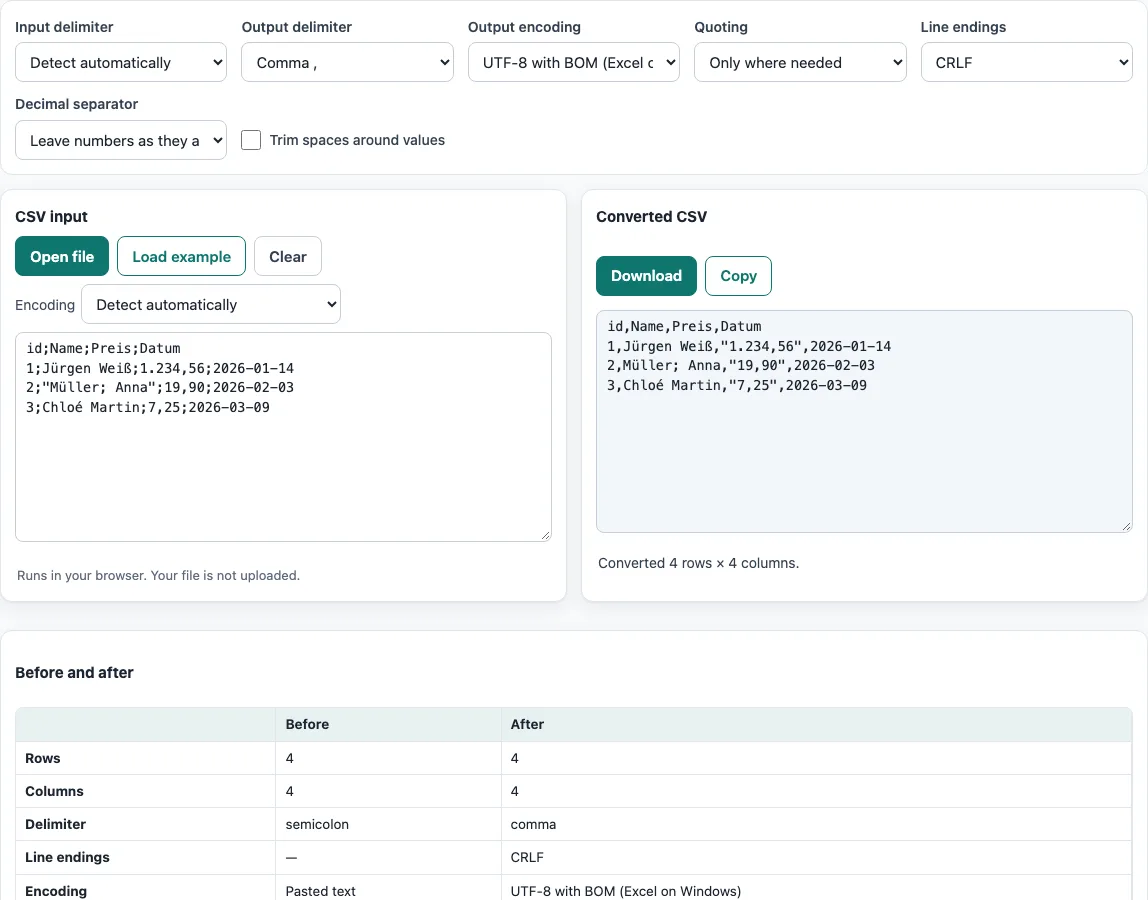
How to use the CSV converter
- Load your data. Paste text into the box, press Open file, or drop a file onto the box. To try the tool first, press Load example.
- If you opened a file, check the Encoding menu. It defaults to Detect automatically, so change it only if the text shows wrong characters.
- Set Input delimiter to auto, or choose the separator your file uses.
- Set Output delimiter to comma, semicolon, tab or pipe.
- Set Output encoding to UTF-8, UTF-8 with BOM (Excel on Windows), UTF-16 LE with BOM (Excel Unicode Text) or Windows-1252 (Western Excel).
- Set Decimal separator to leave numbers as they are, or to convert in either direction.
- Choose Quoting (only where needed, or quote every field) and Line endings (CRLF or LF). Turn on Trim spaces around values if your cells contain stray spaces.
- Read the Before and after table to check rows, columns, delimiter, encoding and changed cells.
- Press Copy to copy the result, or Download to save it as a file.
The result updates as you type or change an option, so you can adjust settings and watch the output change before you copy or download. Option choices are kept in the page address, so a bookmarked or shared link reopens with the same settings. Your data is never put in the address.
How do I change a semicolon CSV to a comma CSV?
Set Input delimiter to semicolon (or leave it on auto), then set Output delimiter to comma. The tool splits each row on the input separator and writes it back out with the output separator, and the values themselves stay the same.
A delimiter is the character that marks where one field ends and the next begins. Semicolons are common in files saved by programs whose regional settings use a comma as the decimal separator, because a comma inside a number would be ambiguous. A number such as 1,5 then contains a comma, which would break a comma-separated file.
CSV handles this with quoting: a field that contains the delimiter is wrapped in double quotes. Take the input a;b and "1,5";2. With input semicolon, output comma and decimal comma → point, the tool produces a,b and 1.5,2, and reports one decimal converted. The quoted value 1,5 becomes 1.5, so no comma remains inside the field and quoting is no longer needed. With Quoting set to only where needed, the quotes are removed.
What is the difference between UTF-8 and UTF-8 with BOM?
UTF-8 is a way of storing text as bytes. UTF-8 with BOM is the same encoding with a three-byte signature (EF BB BF) at the very start of the file. The BOM, or byte-order mark, tells a program that the file is UTF-8 before it reads any text.
Plain UTF-8 is the usual choice for most software, including web tools, code editors and many databases. Excel on Windows may guess the wrong encoding for a file without the signature, and accented letters or other non-English characters can then appear as garbage. Choosing UTF-8 with BOM (Excel on Windows) in Output encoding writes the signature, which helps Excel open the file correctly.
Some programs do not expect the signature and show it as an extra character at the start of the first column name. Choose the option that matches the program you will open the file in.
Frequently asked questions
How do I convert a CSV to a different encoding?
Open the file or paste its text, check that the Encoding menu reads it correctly, then choose the new encoding in Output encoding. Download saves the file with the real bytes of that encoding.
How do I change decimal commas to decimal points?
Set Decimal separator to “Decimal comma → point (3,14 → 3.14)”. Only cells that are numbers change, and the Before and after table shows how many decimals were converted.
Why does my Windows-1252 file contain question marks?
Windows-1252 cannot hold every character. Characters it does not support, such as Chinese characters or emoji, are written as ‘?’. The tool lists these characters so you can decide whether to keep Windows-1252 or switch to UTF-8.
What if the Encoding menu reads my file wrongly?
Auto-detection checks for a byte-order mark, then UTF-16, then valid UTF-8, and otherwise reads the file as Windows-1252. If accents or symbols look wrong, pick the encoding the file was saved in, such as ISO-8859-2, Windows-1251, Shift_JIS, GBK, Big5 or EUC-KR.
Can this tool convert a tab-separated file?
Yes. Set Input delimiter to tab, or leave it on auto, and set Output delimiter to the separator you need. For a page focused on tabs and commas, see the TSV and CSV delimiter converter listed below.
Will trimming spaces change my data?
Trim spaces around values removes spaces at the start and end of each value. The Before and after table counts trimmed cells, so you can check how many values changed.
Related tools
- CSV viewer - view a CSV as a table before you convert it.
- TSV and CSV delimiter converter - use when your main job is switching between tabs and commas.
- XLSX to CSV - use when your data starts in an Excel workbook.
- CSV to XLSX - use when you need an Excel file made from CSV data.
- CSV validator - use to check a file’s structure before converting it.
- CSV formatter - use when you want the file tidied rather than changed to another dialect.
- CSV to UTF-8 - use when the encoding is the only thing you need to change.