CSV Editor
Open a CSV and edit it like a spreadsheet, or start a blank one; leading zeros and long IDs stay exactly as typed.
This CSV editor is a free tool that opens a CSV file as an editable grid in your browser. You can change any cell, add or delete rows and columns, find and replace text, and download the edited file. It works as a csv editor online with no install and no sign-up. The tool runs entirely on your device: your file is read and processed by the browser, and nothing is uploaded.
Use it to edit a CSV you already have, or to create a new one from a blank grid. Paste your text into the box or drop a file onto it to start. The result updates as you work, so you can check your changes before you save. You do not need to write code or know the CSV rules to make edits.
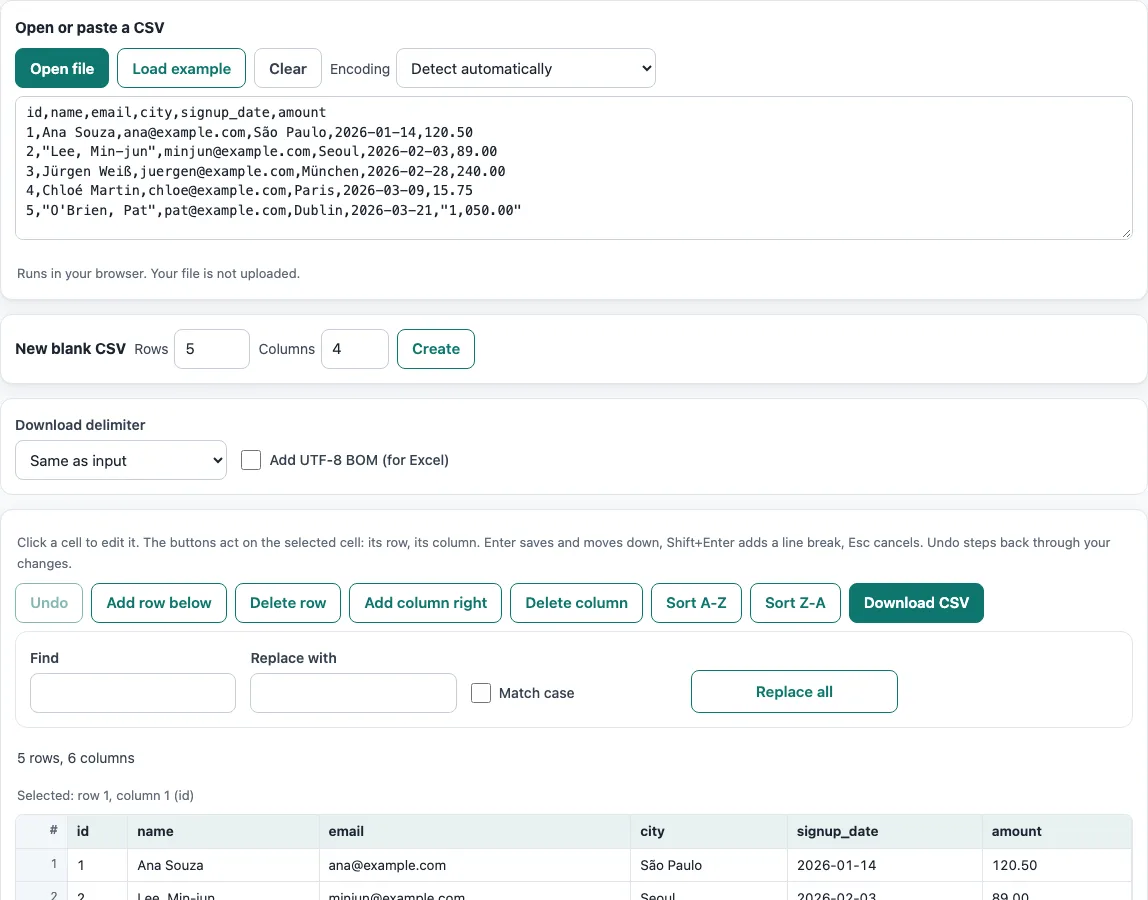
How to use the CSV editor
- Paste your CSV text into the box, press Open file, or drop a file onto the box. To try the tool first, press Load example.
- Click any cell, including the header row, and type your change.
- Press Enter to save the cell and move down. Press Esc to cancel the edit.
- Select a cell, then use the toolbar to act on its row or column: Add row below, Delete row, Add column right or Delete column.
- Press Sort A-Z or Sort Z-A to sort the rows by the selected cell’s column (the header row stays on top).
- To change text across the file, type the text in Find and the new text in Replace with. Tick Match case if capitals matter, then press Replace all. The tool reports how many occurrences were replaced and in how many cells.
- Press Download CSV to save the file. Use Download delimiter to keep the original delimiter or switch to another. Tick Add UTF-8 BOM (for Excel) if you plan to open the file in Excel.
Press Shift+Enter to add a line break inside a cell; Undo steps back through your changes, and the CSV text panel shows the file as text. Large files show 500 rows per page, with Previous and Next to move between pages; your edits are kept for all rows. Option choices are kept in the page address; your data never is.
How do I make or create a CSV file?
To create a CSV file, write one record per line and separate the fields with commas. You can also start from an empty grid in this CSV editor and save the result as a CSV file.
A CSV file is plain text, and the rules are simple. Each line is one row, and each comma starts a new column. If a field contains a comma, a double quote or a line break, wrap that field in double quotes, as described in RFC 4180. A double quote inside a quoted field is written as two double quotes.
To make one by hand, open any text editor, type one record per line, and save the file with the .csv extension as UTF-8. To make one here, choose New blank CSV, enter the number of Rows and Columns, and press Create. The new columns are named column_1, column_2 and so on, so you can rename the headers by clicking them.
Can I edit a CSV file without Excel?
Yes. A CSV file is plain text, so you do not need Excel to change it. This CSV editor shows the file as a grid, which makes it easy to edit without seeing the raw commas and quotes.
Every cell is treated as text. The editor never converts values, so something like 00123 or a long ID number stays exactly as you typed it. Excel can change those values when it opens and re-saves a file, for example turning 00123 into 123.
When you open a file, the Encoding menu decides how its bytes are read. The default, Detect automatically, checks for a byte-order mark, then UTF-16, then valid UTF-8. If none of these fit, the file is read as Windows-1252. You can choose another encoding, such as ISO-8859-2 or Shift_JIS, if your text looks wrong.
Frequently asked questions
How do I add a column to a CSV file?
Click any cell in the column you want the new column to follow, then press Add column right. The new column appears to the right of the selected cell. Click its header to give it a name.
Will editing change my quotes or leading zeros?
Values are kept as typed. Leading zeros such as 00123 stay as they are, and long numbers are not rounded. On download, quotes are added only where a value needs them, meaning it contains a comma, a quote or a line break.
Is my file uploaded anywhere?
No. The browser reads and processes the file on your own device, and nothing is sent to a server. You do not need an account or a sign-up to use the tool.
Why do some letters look wrong when I open my file?
The file was probably read with the wrong encoding. Choose a different option from the Encoding menu, such as Windows-1251 for Cyrillic text or GBK for Chinese text, and the display will update.
Can I undo changes I have made?
Yes. Undo steps back through your changes one at a time. Use it before you download if you want to return a cell or row to an earlier state.
Can I use the edited file for work?
Yes. The results can be used for any purpose, including commercial work, with no attribution required.
Related tools
- CSV viewer: Use it to read a CSV file without making changes.
- CSV to XLSX: Use it when you need to convert a CSV file into an Excel workbook.
- Merge CSV files: Use it to combine several CSV files into one.
- CSV validator: Use it to check that a CSV file follows the expected structure.
- CSV formatter: Use it to tidy the layout of a CSV file.
- Sample CSV files: Use them when you need example data to practise with.
- CSV file format: Read it to learn the rules for delimiters, quotes and line breaks.