CSV Formatter and Cleaner
Clean a messy CSV in one pass: trim spaces, drop blank and duplicate rows, tidy headers and sort, with a count of every change.
The CSV formatter cleans and reformats a CSV file in one pass. It can trim spaces, collapse repeated spaces, remove blank rows, remove duplicate rows, change header case and sort by a column. A counter shows what changed, so you can check the result before you download it.
The tool runs entirely in your web browser. Your file is read and processed on your own device, and nothing is uploaded. There is no account or sign-up, and it is free to use.
Use it as a csv cleaner for messy exports, or as an online csv formatter when you need a tidy file for a spreadsheet, a database import or a script.
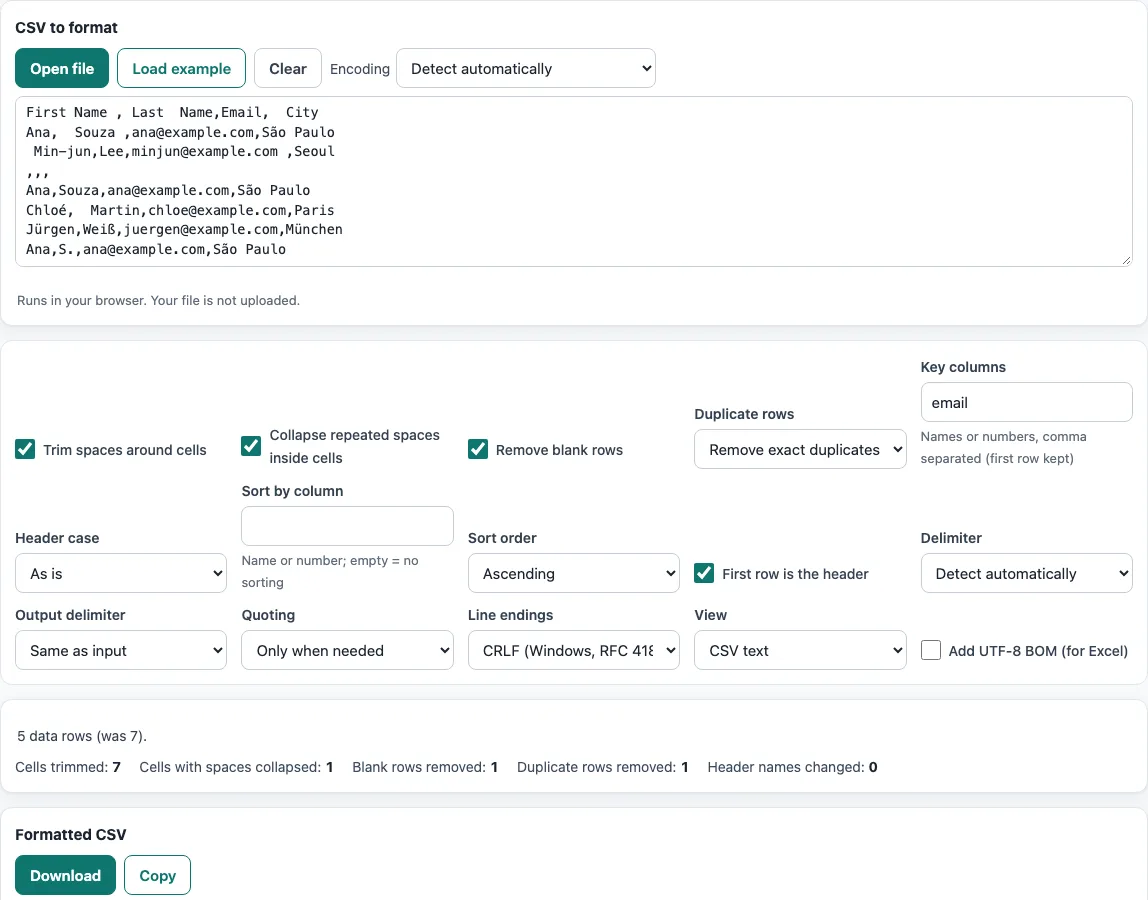
How to use the CSV formatter
- Paste your CSV text into the box, or press Open file, or drop a file onto the box. To try the tool first, press Load example.
- Check the three options that are on by default: Trim spaces around cells, Collapse repeated spaces inside cells and Remove blank rows. Turn any of them off if you need them off.
- Under Duplicate rows, choose Keep all, Remove exact duplicates (the default) or Remove duplicates by key columns. For the last option, type the names or numbers of the key columns in Key columns, separated by commas.
- Choose a Header case: as is, lower case, snake_case or Title Case.
- Type a column name or number in Sort by column, and pick Sort order (ascending or descending). Leave the box empty to skip sorting.
- Set the Output delimiter, Quoting, Line endings and Add UTF-8 BOM (for Excel) to match the program that will read the file.
- Read the counter to see what changed. Choose View as CSV text for importing, or Aligned columns (for reading) for a padded view you can read but should not import.
- Press Copy to copy the result, or Download to save it as a file.
The result updates as you change any option. Your option choices are kept in the page address, so a bookmarked or shared link reopens the tool with the same settings. Your data itself is never put in the address.
How do I remove duplicate rows from a CSV?
Set Duplicate rows to Remove exact duplicates to delete rows that match another row in every column. Use Remove duplicates by key columns when only some columns should decide what counts as a duplicate, such as an email column. The tool keeps the first occurrence of each row and removes the later ones.
Duplicates are compared after trimming, so " Ana ",ana@x.com and Ana,ana@x.com count as the same row. This is the core of a csv duplicate remover. The counter reports how many duplicate rows were removed.
How do I trim spaces in a CSV file?
Leave Trim spaces around cells on, which is the default. It removes spaces at the start and end of every value, including header names. Spaces next to a comma, such as Name ,E-mail, become Name,E-mail.
Collapse repeated spaces inside cells is also on by default. It reduces runs of spaces inside a value to a single space. The counter reports how many cells were trimmed.
Can I make the header names snake_case?
Yes. Set Header case to snake_case and the header row is converted to lower-case words joined by underscores. For example, E-mail Address becomes e_mail_address. Only the header row changes, and the counter reports how many header names were changed.
If you do not want this, pick as is, lower case or Title Case instead.
How do I sort a CSV by a column?
Type the column name or its number into Sort by column, then choose ascending or descending for Sort order. The header row stays on top, and only the data rows are reordered. If you type a column that does not exist, the tool reports it.
Leave Sort by column empty to keep the original row order. The counter shows whether the file was sorted.
Frequently asked questions
Is this online CSV formatter free, and do I need an account?
Yes, it is free. You do not need an account or a sign-up to use it.
Are my files uploaded to a server?
No. The browser reads the file and processes it on your own device, and nothing is uploaded.
Can I use the cleaned file for work or business?
Yes. You may use the results for any purpose, including commercial work, and no attribution is required.
Why does my CSV show strange characters after opening?
The file may use a different text encoding from the one the tool guessed. Open the file with a specific choice from the Encoding menu, such as ISO-8859-2, Windows-1251 or Shift_JIS. The default, Detect automatically, checks for a byte-order mark, then UTF-16, then valid UTF-8, and otherwise reads the file as Windows-1252.
When should I turn on Add UTF-8 BOM (for Excel)?
Turn it on when you will open the downloaded file in Excel and need it to read the text as UTF-8 correctly. Leave it off for programs that do not expect a byte-order mark.
Does the formatter change the values in my cells?
Only the clean-up steps you leave on change them: trimming and collapsing spaces change the spacing inside cells, and Header case changes the header row. Numbers, dates and text are otherwise written exactly as they were.
Related tools
- CSV viewer: Open a CSV file and look through its rows and columns without changing it.
- CSV editor: Edit individual cells when you need to change values by hand.
- CSV converter: Change a CSV file into another format or layout.
- Merge CSV files: Combine several CSV files into one before cleaning it.
- CSV validator: Check a CSV file for structural problems before you import it.
- CSV to UTF-8: Convert a CSV file’s text encoding to UTF-8.
- Comma separator: Work with values that are separated by commas.