Convert to CSV ASCII Only
Paste or open a CSV and get a copy with only ASCII characters: accents removed, quotes straightened, other characters replaced or removed.
To convert a CSV file to ASCII only, use CSV to ASCII. It turns a CSV file or pasted text into text that holds only ASCII characters, meaning code points 0 to 127. Accented letters such as é become e, curly quotes become straight quotes, and the en dash becomes a normal hyphen. Characters with no ASCII form, such as Chinese, Japanese and emoji, follow a setting you choose: replace them, remove them, or keep them and accept a file that is not ASCII-only.
The conversion runs in your browser, and your file is not uploaded. Commas, semicolons, quotes and line breaks are already ASCII, so the CSV structure stays intact. A report shows what was changed, and the result can be downloaded or copied. Use this page when a program or import accepts only plain ASCII text.
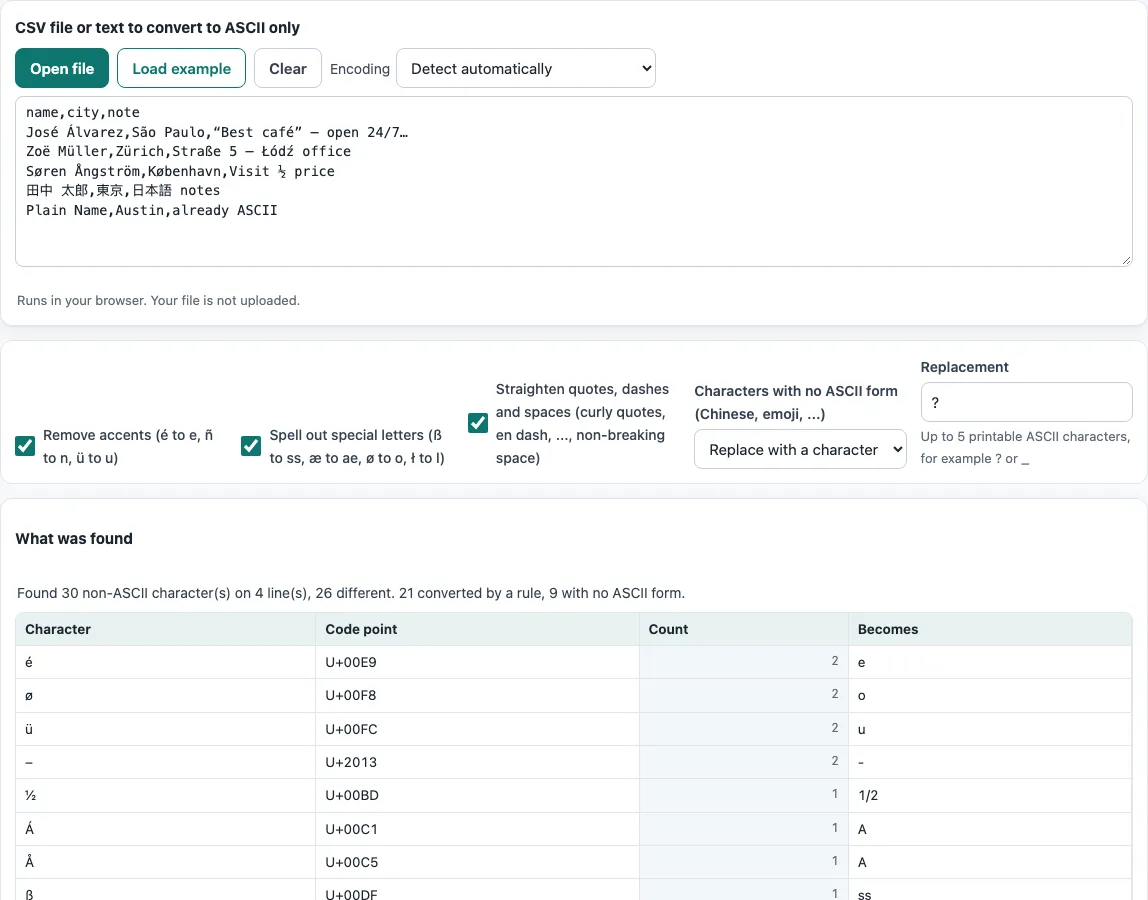
How to use the CSV to ASCII
- Load your data. Click Open file, drop a file on the box, or paste CSV text. To try the tool first, click Load example.
- Choose the rules to apply. These three tick boxes are on by default: Remove accents (é to e, ñ to n, ü to u), Spell out special letters (ß to ss, æ to ae, ø to o, ł to l) and Straighten quotes, dashes and spaces (curly quotes, en dash, …, non-breaking space). Untick any you do not want.
- Pick a setting for characters with no ASCII form. In the Characters with no ASCII form (Chinese, emoji, …) list, choose Replace with a character (the default), Remove them, or Keep them (file is not ASCII-only).
- Set the Replacement if you chose to replace. It holds up to 5 printable ASCII characters and defaults to ?. Other characters typed there are dropped.
- Read the report. The status line shows how many non-ASCII characters were found and how many were converted by a rule or had no ASCII form. The table lists up to 15 characters, most frequent first.
- Save the result from the ASCII-only CSV box. Click Download (saved as name_ascii.csv, or file.csv for pasted text) or Copy.
Settings are kept in the page address as ?key=value, so a bookmarked or shared link reproduces them. Use Clear to start again. The Encoding list is set to detect the encoding automatically by default.
How do I convert a CSV to ASCII only?
Each non-ASCII character in the file is either replaced by a plain ASCII form through a rule, or it has no ASCII form and follows your setting. The tool works on the whole text, so the CSV structure is never changed. Commas, semicolons, quotes and line breaks are already ASCII and stay as they are, and plain ASCII text comes back unchanged.
The built-in example shows how this works. It contains 30 non-ASCII characters on 4 lines, 26 of them different. Rules convert 21 of them. The other 9 are Japanese characters with no ASCII form, so they become ? by default. “José Álvarez” becomes “Jose Alvarez”, and “Visit ½ price” becomes “Visit 1/2 price”.
How do I remove accents from a CSV?
Tick Remove accents (it is on by default) and every accented letter is reduced to its plain base letter.
Accents are removed using Unicode decomposition. The letter é is split into e plus a separate accent mark, and the accent mark is dropped, leaving e. The same step turns compatibility characters into plain ones: the ligature fi becomes fi, a superscript 2 becomes 2, and full-width letters become normal letters. A lone accent mark on its own is removed.
Some letters do not split into a base letter and an accent, so they follow fixed rules. ß becomes ss, æ becomes ae, Æ becomes AE, œ becomes oe, ø becomes o, đ and ð become d, þ becomes th, ł becomes l, ı becomes i, and ħ becomes h.
Punctuation has its own rules. Curly single quotes become ‘, and curly double quotes become “. « becomes «, and » becomes ». The en dash and em dash become -, and the ellipsis becomes three dots. A bullet becomes *, and × becomes x. The symbols © ® and ™ become (c), (r) and (tm). The fractions ½, ¼ and ¾ become 1/2, 1/4 and 3/4. Non-breaking and other special spaces become a normal space, while zero-width characters and the byte order mark are removed.
Frequently asked questions
What happens to characters that have no ASCII version?
Characters such as Chinese, Japanese, Greek, emoji and the euro sign have no ASCII form, so they cannot stay in an ASCII-only file unless you keep them. Your setting decides what happens: they are replaced with your Replacement text (default ?), removed, or kept, which makes the file not ASCII-only. One emoji counts as one character, so it becomes one replacement character.
Why do some systems need ASCII-only CSV files?
Some programs and imports accept only plain ASCII text. A file that contains accented letters or other characters may be rejected or show garbled text in those systems. An ASCII-only file avoids that problem.
Will this change my delimiters or quotes?
No. The tool changes only non-ASCII characters. Commas, semicolons, quotes and line breaks are all ASCII, so they are never changed and the CSV structure stays intact.
Does converting a CSV to ASCII lose information?
Yes, in some cases. Transliteration loses information: “Müller” and “Muller” become the same text, and names or emoji with no ASCII form cannot be kept in an ASCII-only file.
What is the difference between ASCII and UTF-8?
ASCII has 128 characters, code points 0 to 127, covering basic English letters, digits, punctuation and control codes. UTF-8 is an encoding that can represent every Unicode character, including accented letters, Chinese and emoji. For pure ASCII text, the UTF-8 output is byte-identical to ASCII.
Related tools
- CSV to UTF-8: use it when the receiving system supports UTF-8, so you can keep accents and other characters instead of removing them.
- CSV converter: use it to change the delimiter, encoding or line endings of a CSV.
- CSV formatter: use it to trim spaces, remove blank rows and duplicates.
- CSV validator: use it to check that a CSV is well formed.
- Comma separator: use it to turn another delimiter into commas.
- CSV file format: see how a CSV file is built: delimiters, quotes and line breaks.