CSV to HTML Table Converter
Paste or open a CSV and get clean HTML table code with a live preview, ready for a web page, CMS or e-mail template.
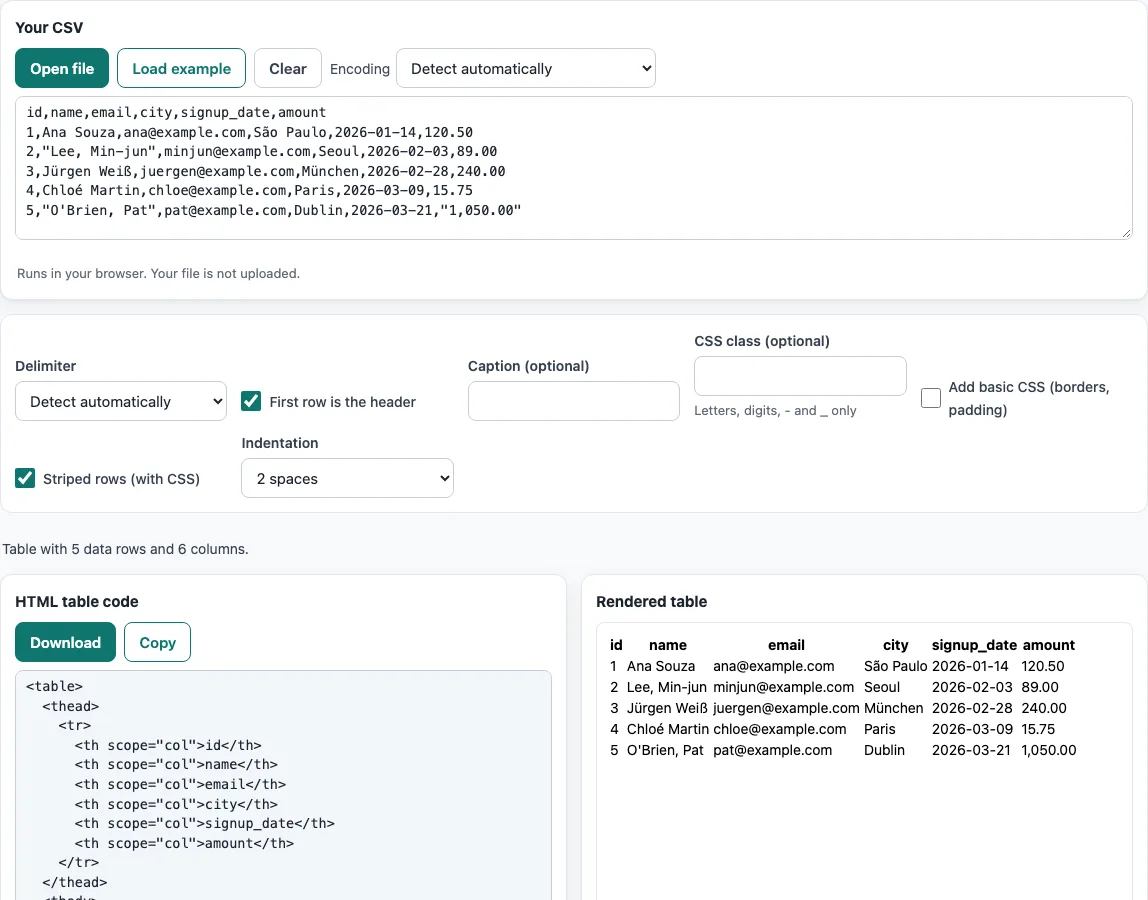
How to use the CSV to HTML Table
- Paste your CSV into the box, press Open file, or drop a file on the box. To try the tool first, press Load example. To start again, press Clear.
- If you opened a file and the text looks garbled, open the Encoding menu. It is set to Detect automatically by default, so change it only if the detection gets it wrong.
- Check Delimiter: it is detected automatically, or choose comma, semicolon, tab or pipe yourself.
- Decide whether the first row is a header. Tick or untick First row is the header to control whether that row becomes header cells.
- Read the status line: it shows the rows, the columns and any CSV problem with its line number.
- Set the options you need: Caption (optional), CSS class (optional), Add basic CSS (borders, padding), Striped rows (with CSS), and Indentation (2 spaces, 4 spaces, tab or none).
- Check the Rendered table preview to confirm the layout.
- Press Copy to copy the table code into a web page, content management system or e-mail template. Press Download to save a complete .html page that opens in any browser.
The option choices are stored in the page address. Bookmark the address or share it, and the tool reopens with the same settings. Your data is never stored in the address, so you need to paste or open the data again.
How do I convert CSV to an HTML table?
The tool reads each CSV line as a table row and each comma-separated value as a cell. It wraps the whole output in a <table> element, places the header cells inside <thead> as <th scope="col"> elements, and places the remaining rows inside <tbody> as <td> elements. Line breaks inside a single CSV cell become <br> tags.
Is the HTML safe if my data contains < or &?
Yes. Every cell’s text is HTML-escaped before it is written out, so the characters <, >, &, and quote marks become entities. For example, the value <x> becomes <x>. Browsers show it as the text <x> instead of treating it as a tag, so data cannot break the page layout or insert markup.
Can I style the table?
Yes, in three ways. Add basic CSS (borders, padding) adds a small <style> block with borders and padding. Striped rows (with CSS) shades every other row, and it depends on that same style block. CSS class (optional) adds a class attribute to the table, which lets your own stylesheet target it. Letters, digits, hyphens and underscores are allowed in the class name.
How do I put the table on my website?
Copy the generated code and paste it into the place in your page where the table should appear. This works in a web page editor, a content management system or an e-mail template. If you have no page yet, press Download to save a complete .html file, then open it in any browser or upload it to your site.
A small example: the CSV name,city / Ana,Lima gives a table whose header row holds the two <th> cells name and city and whose body holds one row with the <td> cells Ana and Lima. With Add basic CSS on, a <style> block comes first, so the table looks the same wherever you paste it.
Empty CSV cells become empty <td></td> cells, so every row of the table has the same number of columns as the header.
Frequently asked questions
Does the CSV to HTML table tool upload my file?
No. The browser reads the file and processes it on your device, and nothing is uploaded. You do not need an account to use the tool.
What does the caption option do?
Caption (optional) adds a <caption> element to the table. Screen readers and browsers use it as a title for the table.
Why does my CSV show strange characters after I open it?
The file may be encoded differently from the one the tool guessed. Open the Encoding menu and choose the matching encoding, such as UTF-8, Windows-1252 or Shift_JIS. The default is Detect automatically.
Can I use this csv to table conversion for e-mail?
Yes. Copy the table code and paste it into an e-mail template that accepts HTML. Results can be used for any purpose, including commercial work, with no attribution.
What happens if my CSV has an error?
The status line reports the problem with its line number, and the table is still built. Fix the line in your CSV and the output updates.
Can I use the table in an e-mail newsletter?
Yes. Many e-mail programs ignore <style> blocks, so check how the table looks in the e-mail program you send with; tables themselves are well supported in e-mail.
Related tools
- CSV viewer - Open and inspect your CSV data before you convert it.
- CSV to JSON - Use this when a program or API needs JSON instead of a table.
- CSV to XML - Use this when your system expects XML input.
- CSV formatter - Use this to clean up or reformat CSV before converting it.
- HTML table to CSV - Use this when you have a table in HTML and need it back as CSV.
- CSV to Markdown - Use this when you want a table for a README or Markdown document.