CSV to JSON Converter
Paste or open a CSV file and get JSON as you type: choose the output shape, indent and whether numbers are converted.
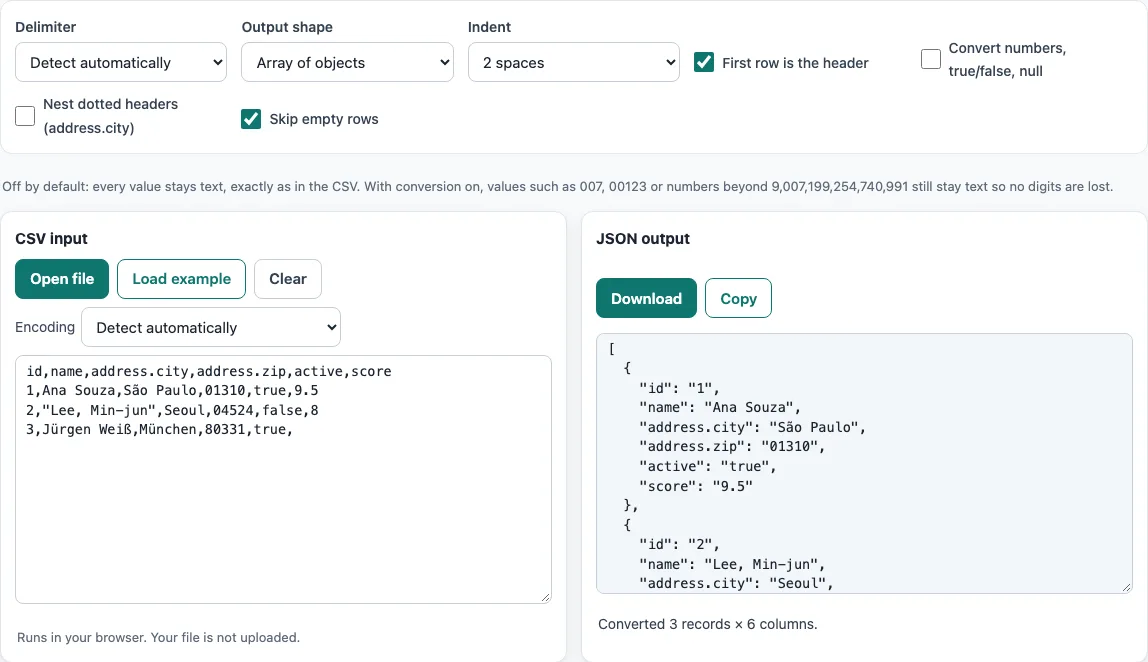
How to use the CSV to JSON converter
- Paste your CSV text into the input box, press “Open file”, or drop a file on the box. To try the tool first, press “Load example”.
- Check the Delimiter menu. “Detect automatically” finds comma, semicolon, tab or pipe; choose one yourself if the columns look wrong.
- Choose an output shape: “Array of objects”, “Array of arrays”, or “Keyed by first column”.
- Leave “First row is the header” on if your first line holds column names. Turn it off if it does not.
- “Skip empty rows” is on by default and drops blank lines; turn it off to keep them as empty records.
- Turn on “Convert numbers, true/false, null” if you want typed values instead of strings.
- Set the indent to 2 spaces, 4 spaces, tab, or minified (one line).
- Read the result. It updates as you change any option. Press “Copy” to copy it, or “Download” to save it as a file.
If you open a file, the Encoding menu is set to “Detect automatically” by default. Change it only if characters look wrong. Your option choices are kept in the page address, so a bookmarked or shared link reopens with the same settings. The data itself is never put in the address.
How do I convert CSV to JSON?
Each data row of the CSV becomes one JSON object, and the header names become the keys. For example, the header id,name,zip with the row 1,Ana,00123 gives {"id": "1", "name": "Ana", "zip": "00123"}. The first line is read as the header when “First row is the header” is on.
A quoted field can contain the delimiter. In 2,"Lee, Min",94105, the comma inside the quotes stays part of the value, so the name is Lee, Min. The tool reads the quotes correctly, which is why it does not split that field in two.
The output shape decides the overall structure. “Array of objects” gives one object per row. “Array of arrays” gives one array of strings per row, with the header as the first array when it is used. “Keyed by first column” gives a single object whose keys are the values in the first column, so each key points to its row.
Does it keep leading zeros like 00123?
Yes. By default every value stays a JSON string exactly as written in the CSV, so 00123 stays "00123". Nothing is trimmed or reformatted.
Number conversion does not remove the zeros either. JSON numbers cannot have leading zeros, so converting 00123 to a number would change its digits. For that reason, values such as 007, 00123, and -0 stay strings when “Convert numbers, true/false, null” is on. Integers larger than 9,007,199,254,740,991 also stay strings, because that is the largest integer JavaScript can store exactly. Digits in those values are kept intact.
Each value is written as a JSON string unless you turn on number conversion, which is the safest default: a program reading the JSON gets exactly the characters that were in the CSV file.
Rows that are shorter than the header get empty strings for the missing keys, so every object has the same keys.
Frequently asked questions
Can I get numbers instead of strings?
Yes. Turn on “Convert numbers, true/false, null”. Values such as 7 become numbers, true and false become booleans, and null becomes null. Values with leading zeros or that are too large to store exactly remain strings.
How do I make nested JSON from CSV columns?
Name the header with a dot, such as address.city, and turn on “Nest dotted headers (address.city)”. For the CSV id,address.city,active with the row 7,Paris,true, and number conversion on, the output is [{"id": 7, "address": {"city": "Paris"}, "active": true}].
Is my CSV file uploaded anywhere?
No. The tool runs in your web browser. The browser reads the file and processes it on your device, and nothing is uploaded. You do not need an account to use it.
What happens if my CSV has a broken quote?
A problem such as a quote that is never closed is reported with its line number. Find that line in the input, fix the quote, and the result updates.
Why does my text look garbled after I open a file?
The file was probably read with the wrong encoding. “Detect automatically” checks for a byte-order mark, then UTF-16, then valid UTF-8, and otherwise reads the file as Windows-1252. If the text is still wrong, choose another encoding from the Encoding menu, such as Shift_JIS, GBK, or ISO-8859-2.
Related tools
- CSV viewer to look at rows and columns of a CSV file before you convert it.
- JSON to CSV when you need to turn JSON data back into a spreadsheet-friendly CSV file.
- JSONL to CSV when your data is one JSON object per line and you want CSV.
- CSV to XML when the system you are sending data to expects XML instead of JSON.
- CSV validator to check a CSV for problems such as unclosed quotes before converting it.
- CSV formatter to clean up the layout of a CSV file.
- CSV to SQL when you want to load CSV rows into a SQL database.