CSV to Markdown Table Converter
Paste or open a CSV and get a GitHub-style Markdown table for a README, wiki or notes, with a rendered preview.
CSV to Markdown is a free tool that converts CSV data into a Markdown table written in GitHub Flavored Markdown (GFM) syntax. Paste your CSV into the box, press Open file, or drop a file on the box, and the csv to markdown table updates as you type.
Markdown tables are plain text, so you can paste the result into a README, a wiki page, or a note app that supports GFM tables. A Rendered table view shows a preview, so you can check how the table will look before you copy it.
The tool runs entirely in your web browser. Files are read and processed on your own device, nothing is uploaded, and no account or sign-up is needed.
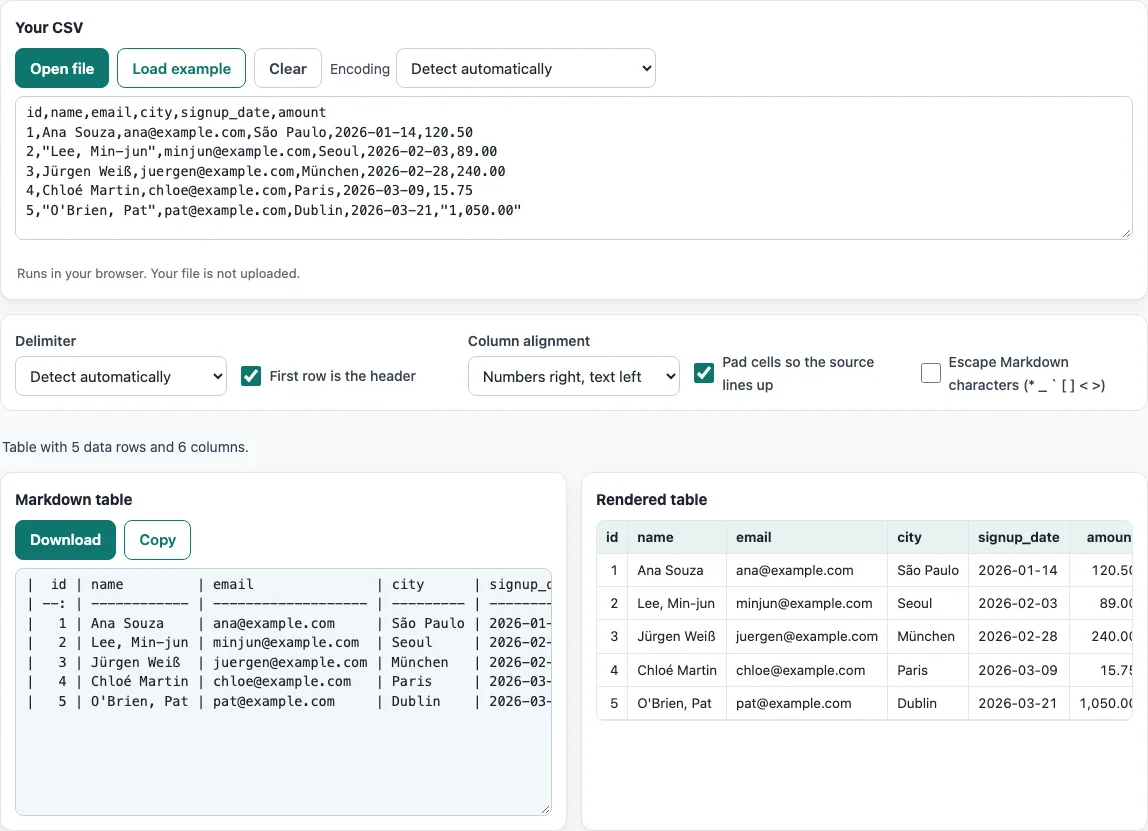
How to use the CSV to Markdown tool
- Put your CSV into the input box. You can paste text, press Open file to choose a file, or drop a file on the box. To try the tool first, press Load example.
- Look at the result. It updates as you type or change an option.
- Choose a column alignment: Numbers right, text left (the default), Default (no markers), All left, All centered, or All right.
- Pad cells so the source lines up is on by default, so the raw Markdown reads like a table; turn it off for the shortest output. Turn on Escape Markdown characters if your data contains * _ ` [ ] < >.
- Check the Rendered table to see the preview.
- Press Copy to copy the Markdown, or press Download to save it as a file. Press Clear to empty the input box.
- If the columns look wrong, check Delimiter (detected automatically) and First row is the header: a Markdown table always has a header row, so turn it off only if your CSV has no header and you want the first data row to act as one.
Your option choices are kept in the page address, so a bookmarked or shared link reopens the tool with the same settings. The data itself is never put in the address.
How do I make a Markdown table from CSV?
Each CSV row becomes one line of the table, and each value becomes a cell separated by |. The first line is the header row, the second line is a delimiter row of dashes, and every line after that is a data row.
For this CSV:
item,qty,note
Pen,10,blue | black
Ink,2,
the tool writes:
| item | qty | note          |
| ---- | --: | ------------- |
| Pen  |  10 | blue \| black |
| Ink  |   2 |               |
| item | qty | note |
|---|---|---|
| Pen | 10 | blue | black |
| Ink | 2 |
The delimiter (comma, semicolon, tab or pipe) is detected automatically, and **First row is the header** decides whether your first CSV row becomes the header row.

## How do I align columns in a Markdown table?

Add colons to the dashes in the delimiter row. `:---` aligns a column left, `:---:` centers it, and `---:` aligns it right. A delimiter row with no colons uses the default alignment.

The tool's default, Numbers right, text left, applies this for you. A column that contains only numbers gets right alignment, which is why the qty column above shows `--:`. The other choices set every column to the same alignment, and Default (no markers) leaves the colons out entirely.

## How do I put a pipe character in a Markdown table?

Write it as `\|`. A plain | inside a cell is read as a column break, so the row would split into extra cells. The tool escapes it for you, as shown with blue \| black above.

A line break inside a cell becomes `<br>`, because a GFM table row must stay on one line. If your text contains characters such as * _ ` [ ] < >, turn on Escape Markdown characters so that text like *word* does not turn into italics.

## Where can I use Markdown tables?

GFM tables work on GitHub, GitLab, many wikis, static site generators, and note apps that support GFM tables. Paste the output into any of these, and the platform should display it as a table rather than as plain text.

Before you paste, check the Rendered table preview here. If the table looks right in the preview but not on your platform, the platform may not support GFM tables.
Frequently asked questions
Why does my Markdown table show as plain text?
Check that the second line is a delimiter row of dashes and that each row sits on a single line. Platforms that support GFM tables need both.
What does Pad cells so the source lines up do?
It adds spaces so the raw Markdown lines up in columns, which makes the source easier to read. Wide characters such as Chinese and emoji count as two columns, so they still line up.
My file shows garbled text. What should I do?
Open the Encoding menu and choose the encoding the file was saved in, such as Shift_JIS for Japanese or GBK for Chinese. It defaults to Detect automatically, which checks for a byte-order mark, then UTF-16, then valid UTF-8, and otherwise reads the file as Windows-1252.
Can I use the Markdown output in commercial work?
Yes. Results may be used for any purpose, including commercial work, and no attribution is required.
Can a Markdown table cell contain a line break or a list?
A GFM table row must stay on one line, so the tool turns line breaks inside a cell into <br>. Lists and other block elements do not work inside table cells.
Is my CSV uploaded?
No. The conversion runs in your browser and the file stays on your device.
Related tools
- CSV viewer - Use this to look at the rows and columns of a CSV before you convert it.
- CSV to JSON - Use this when you need the same CSV data as JSON for an app or API.
- Text to CSV - Use this to turn plain text into CSV before converting it to a Markdown table.
- CSV formatter - Use this to clean up the layout of a CSV file before you convert it.
- Comma separator - Use this to add or remove commas between items in a list.
- CSV to HTML table - Use this when you need the same table as HTML for a web page.