CSV to UTF-8 Converter
Open a CSV with broken accents or the wrong encoding and get clean UTF-8, with or without the BOM Excel needs.
This CSV to UTF-8 converter turns a CSV file, or any plain text file, into UTF-8 and repairs garbled characters such as é in one step. It runs entirely in your web browser, so your file is processed on your own device and nothing is uploaded. It is free, and no account or sign-up is needed.
Use it when accents, currency signs or non-Latin letters look wrong after you open a CSV in a spreadsheet or another program. The tool shows what it found about the file, lets you choose a different source encoding if the first guess is wrong, and gives you the corrected text to copy or download. If the program you use needs a UTF-8 byte-order mark, you can add one.
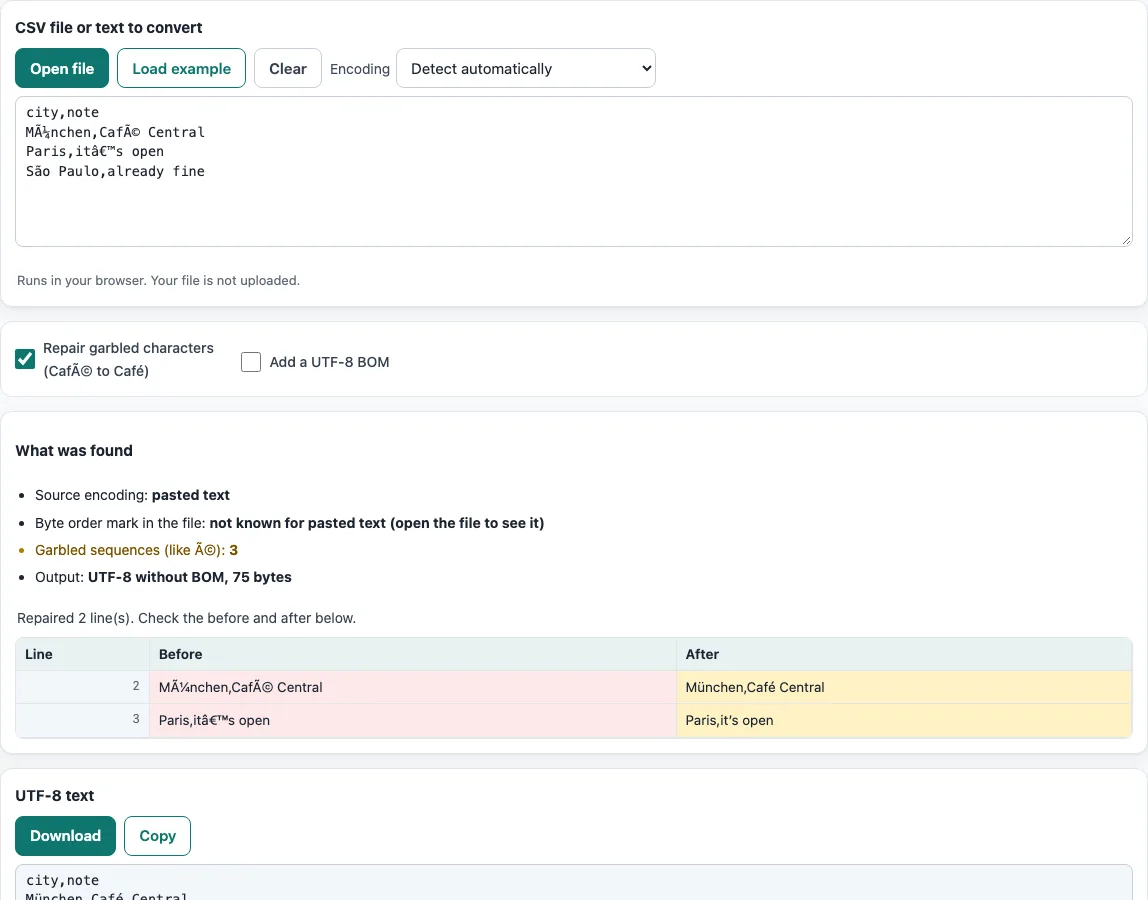
How to use the CSV to UTF-8 converter
- Put your file into the box. Paste the text, press Open file, or drop the file onto the box. To try the tool first, press Load example.
- Look at the Encoding menu. It is set to Detect automatically, which works for most files. Leave it alone unless the result is still wrong.
- Read What was found. It shows the source encoding, whether the file has a byte-order mark, whether its bytes are valid UTF-8, its size, the number of garbled sequences and the number of replacement characters.
- Keep Repair garbled characters (Café to Café) switched on. It is on by default. The before/after table lists each line that was changed.
- If garbled sequences remain, choose another source encoding from the Encoding menu, such as Windows-1251, Shift_JIS, GBK, Big5, EUC-KR or ISO-8859-2. The result updates as you change options, so you can compare the choices directly.
- Switch on Add a UTF-8 BOM only if you need it for your program (see the section on the BOM below).
- Press Copy to copy the result, or Download to save it as a file.
Option choices are kept in the page address. A bookmarked or shared link reopens the tool with the same settings, but your data is never placed in the address. Press Clear to empty the box.
How to convert a CSV file to UTF-8 encoding?
A CSV file is just a sequence of bytes. An encoding is the rule that turns those bytes into letters, so converting to UTF-8 means reading the bytes with the rule they were saved in, then writing the same characters back out as UTF-8. The source encoding is the step that matters most. If it is wrong, the characters are wrong before conversion even starts.
UTF-8 can represent every character in common use, which is why it is the usual target. The tool reads the file with the source encoding, then outputs real UTF-8 bytes, with or without the BOM.
How to view the encoding of a CSV file?
A CSV file does not store its encoding in a reliable, standard place, so you have to check it with a tool. Open the file here and read Source encoding and Byte order mark in What was found. The source encoding shown is the one the tool used to read the bytes, which is the most useful clue to how the file was saved.
In Excel, use Data > From Text/CSV, which shows the file origin. That value is Excel’s guess, so compare it with the source encoding here if the two disagree.
Why is my CSV file showing weird characters?
Weird characters usually mean the file was saved in one encoding and read in another. For example, the letter é takes two bytes in UTF-8. If those bytes are read as Windows-1252, the text shows as é. The tool reverses this common damage line by line, including cases where it happened twice. For instance, Café, München, it’s becomes Café, München, it’s.
If you see the black diamond with a question mark (the replacement character, U+FFFD), the damage is different. Those bytes were already lost when the file was saved, so no tool can recover the original letters. Ask the person who made the file for a fresh export in UTF-8.
What is a UTF-8 BOM and do I need it?
A UTF-8 BOM is a marker made of three bytes, EF BB BF, at the very start of a file. It tells some programs that the file is UTF-8. Excel on Windows needs it to open a UTF-8 CSV by double-click with accents intact. Without it, Excel often reads the file with a legacy encoding and garbles the text.
Most other programs, databases and scripts prefer UTF-8 without a BOM, because the extra bytes can show up as stray characters at the start of the first column name. Add the BOM only when Excel on Windows is the target. In Excel itself, you can also save with CSV UTF-8 (Comma delimited), which writes UTF-8 with a BOM.
Frequently asked questions
Is this CSV to UTF-8 converter free and private?
Yes. The tool runs in your browser, so the file is read and processed on your device and nothing is uploaded. No account or sign-up is needed.
What does “Detect automatically” check?
It checks for a byte-order mark first, then UTF-16, then valid UTF-8. If none of these match, it reads the file as Windows-1252.
Why are there still garbled characters after conversion?
The source encoding may be wrong for this file. Choose another source encoding from the Encoding menu, such as Windows-1251, Shift_JIS or GBK. If garbled sequences remain, the tool reports how many and suggests trying another source.
Can replacement characters be repaired?
No. Replacement characters (U+FFFD) mean the original bytes were lost when the file was saved. The file needs to be exported again from its source.
Should I always add a UTF-8 BOM?
No. Add it only when Excel on Windows needs to open the file by double-click with accents intact. Most other programs work better with UTF-8 without a BOM.
How do I remove a BOM from a CSV file?
Open the file here and leave Add a UTF-8 BOM off. The download is the same text as UTF-8 without the three BOM bytes.
Related tools
- CSV viewer - open a CSV file and check how its rows and columns look before you convert or edit it.
- CSV converter - change a CSV file into another format or delimiter when a program needs something different.
- XLSX to CSV - turn an Excel workbook into CSV text when you need a plain file to work with.
- Merge CSV files - combine several CSV files into one when they share the same columns.
- CSV validator - check a CSV file for structural problems such as uneven rows or broken quoting.
- CSV formatter - tidy the layout of a CSV file so it is easier to read and compare.