Convert CSV to VCF (vCard)
Open a contacts CSV, check how its columns map to name, phone and e-mail, and download one .vcf file with every contact.
This tool converts a CSV file of contacts into one .vcf file (vCard), with one card per row. The .vcf file is ready to import into phones and address books, so you can move a contact list without typing each person in by hand.
The tool runs entirely in your web browser. Your file is read and processed on your own device, nothing is uploaded, and no account or sign-up is needed. It is free to use. It works well when you have an export from Google Contacts, Outlook, or another program and want a vCard file in its place.
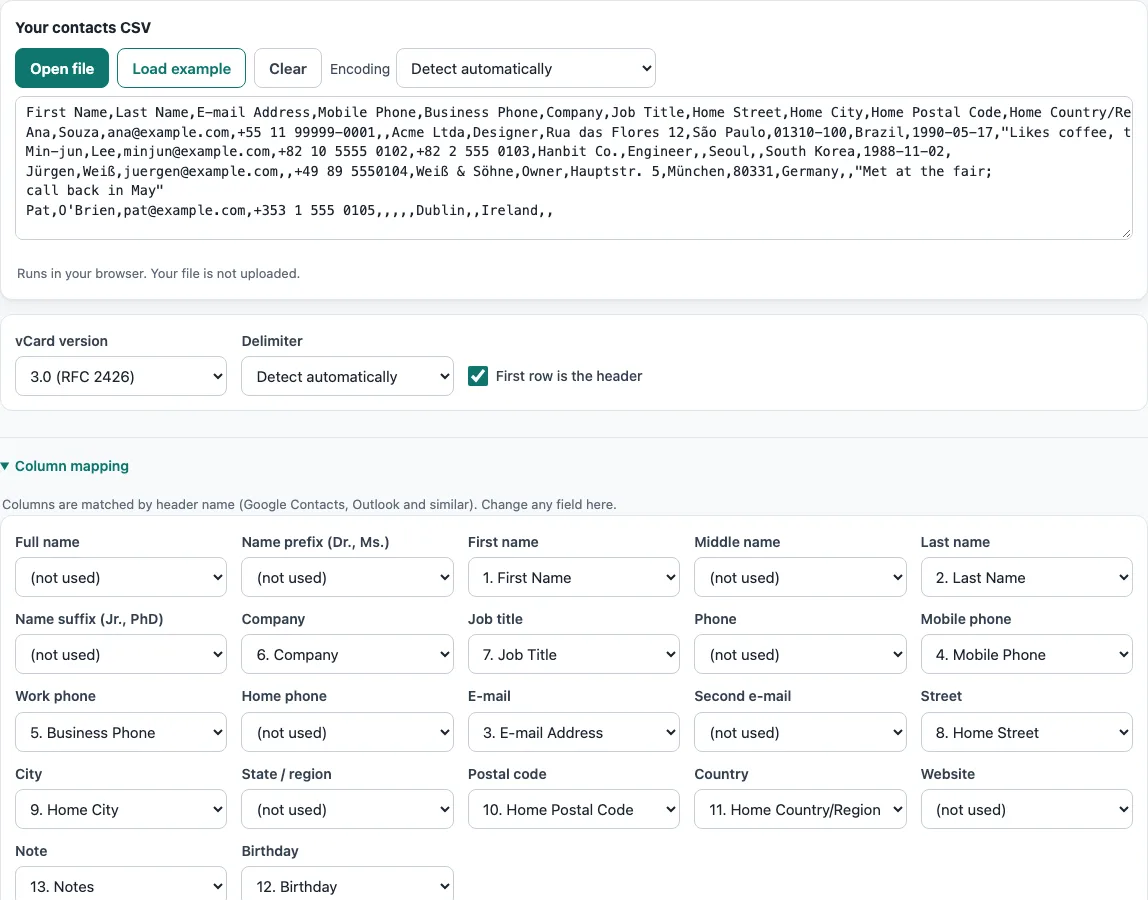
How to use the CSV to VCF converter
- Add your contacts. Paste CSV text into the box, press Open file, or drop a CSV file onto the box. To see how the tool works first, press Load example to fill the box with sample data.
- Check the column mapping. Each vCard field, such as first name, last name, mobile phone, or e-mail, takes one CSV column. Common headers from Google Contacts and Outlook are matched automatically. To change a match, choose a different column for that field, or choose (not used) to leave the field out.
- Choose a vCard version: 3.0 for the widest compatibility with older phones and programs, or 4.0 for the current standard.
- Read the result. It updates as you type or change an option. Look at the first card and check the count of skipped rows.
- Save the result. Press Copy to copy it, or press Download to save it as a file.
- To start over, press Clear to empty the box.
The tool keeps your option choices in the page address. Bookmark the page or share the link to reopen it with the same settings. Your contact data is never put in the address, so the person who opens a shared link will need their own copy of the CSV.
How do I convert a CSV of contacts to a VCF file?
Put your CSV into the box, or open it with Open file, and the tool writes one vCard for each row. Each card is a block that starts with BEGIN:VCARD and ends with END:VCARD, and all the cards together form one .vcf file.
The tool matches columns by their header names, such as First Name, Last Name, E-mail Address, and Mobile Phone. For the header row First Name,Last Name,E-mail Address,Mobile Phone and the row Ana,Souza,ana@example.com,+55 11 5555 0100, version 3.0 produces this card:
BEGIN:VCARD
VERSION:3.0
N:Souza;Ana;;;
FN:Ana Souza
TEL;TYPE=CELL:+55 11 5555 0100
EMAIL;TYPE=INTERNET:ana@example.com
END:VCARD
The N line stores the family name first, followed by the given name, with semicolons separating the parts. If your file has no full-name column, the FN line is built from the name parts. Backslashes, commas, semicolons, and line breaks inside values are escaped as the standard requires.
Which vCard version should I choose?
Choose 3.0 if the file has to work with older phones or programs, because it is the version those tools accept most widely. Choose 4.0 if you want the current standard, which is defined in RFC 6350. Version 3.0 follows RFC 2426.
If you are unsure, start with 3.0. It is the safer choice for a file that may be opened in many different apps. Use 4.0 when you know the app you are importing into supports it and you want the newest format.
How do I import the VCF into my phone or contacts app?
Open the .vcf file in the app that holds your contacts, and each card is added as a contact. The steps depend on your device:
- iPhone or iPad: open the .vcf file from Mail or Files, or import it on icloud.com/contacts.
- Android: open the Contacts app, choose Import from .vcf file, and select the file.
- Google Contacts and Outlook: both import .vcf files, so use the import option in either program.
After importing, open a few contacts to confirm that names, phone numbers, and e-mail addresses appear in the right fields.
Why were some rows skipped?
A row is skipped when it has no name, no e-mail address, and no phone number, because a card with none of these has nothing to identify the person or reach them. The tool counts skipped rows so you can see how many were left out. To keep a row, add a name, an e-mail address, or a phone number in its columns.
Birthdays are handled separately. A birthday that is not written as YYYY-MM-DD (or YYYYMMDD) is left out of the card and counted, but the row itself is still converted. For example, 1990-05-14 is written to the card, while 14/05/1990 is not, because it could be read as day/month or month/day.
Frequently asked questions
Is csv to vcard the same as csv to vcf?
Yes. vCard is the format, and .vcf is the usual file extension for it. Searching either phrase leads to the same conversion.
Why do names with accents look wrong after I convert?
The Encoding menu decides how the file’s bytes are read. It is set to Detect automatically by default. That setting checks for a byte-order mark, then UTF-16, then valid UTF-8, and otherwise reads the file as Windows-1252. If names still look wrong, choose the encoding your file was saved in, such as ISO-8859-2, Windows-1251, Shift_JIS, GBK, Big5, or EUC-KR.
Can I use the converted file for work?
Yes. Results may be used for any purpose, including commercial work, and no attribution is required.
Is there a cost to convert my contacts?
No. The tool is free, and you do not need to create an account to use it.
Can one file hold all my contacts?
Yes. The tool writes every contact into one .vcf file, one card after another, and phones and contact apps import all of them at once.
Is my contact list uploaded?
No. The conversion runs in your browser; names, numbers and addresses stay on your device.
Related tools
- CSV viewer — look through the rows of your CSV before you convert it.
- CSV validator — check a CSV for structural problems before converting it.
- CSV formatter — tidy the layout of a CSV that is hard to read or import.
- Merge CSV files — combine several contact lists into one CSV before converting.
- XLSX to CSV — turn an Excel contact sheet into CSV when you start from a spreadsheet.
- CSV to UTF-8 — re-save a CSV in UTF-8 when accented or non-Latin names do not read correctly.