CSV to XML Converter
Paste or open a CSV file and get well-formed XML: one element per row, one child element (or attribute) per column.
This csv to xml converter turns comma-separated text into XML. Paste your CSV, press Open file, or drop a file on the box, and the tool writes an XML document where each data row becomes one element and each column becomes a child element named after its header. It runs entirely in your web browser, it is free, and no sign-up is needed.
Use it when you need to move from CSV to XML for a system that expects XML, when you want to see how a spreadsheet export looks as markup, or when you need test data. The result updates as you type, so you can adjust the names and layout until the output matches what your program reads.
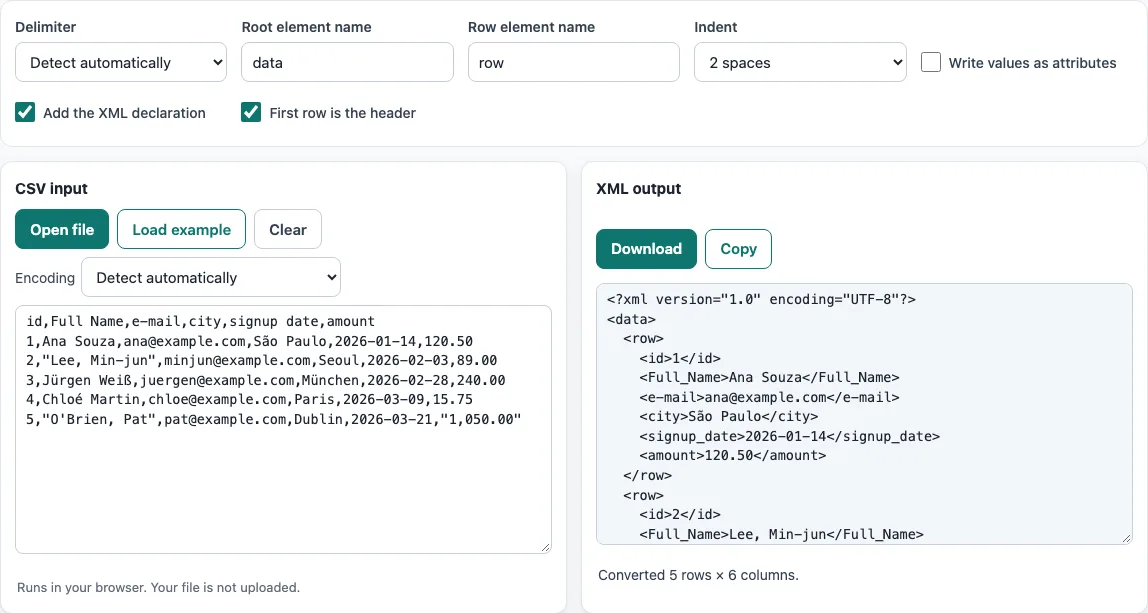
How to use the CSV to XML converter
- Put your data in the input box. Paste CSV text, press Open file to choose a file, or drop a file on the box. To try the tool first, press Load example. To start over, press Clear.
- If accented letters or symbols look wrong, open the Encoding menu and pick the encoding that matches the file. It is set to Detect automatically by default.
- Leave First row is the header on if the first line holds column names. Turn it off if it does not.
- Enter a name in Root element name to wrap all the rows. The default is
data. - Enter a name in Row element name for each record. The default is
row. - Turn on Write values as attributes if you want the values written inside the row tag instead of as child elements.
- Turn on Add the XML declaration to put the XML declaration line at the top.
- Choose an Indent setting: 2 spaces, 4 spaces, tab, or no indent for a single line.
- Check the result, then press Copy to copy it or Download to save an .xml file named after your input file.
The result updates whenever you change the input or an option, so there is no separate run step. Your option choices are kept in the page address, so a bookmarked or shared link reopens the tool with the same settings. The data itself is never put in the address.
How do I convert CSV to XML?
To convert CSV to XML, the tool reads the first line as column names when First row is the header is on, then builds one element for each data line. Every row element sits inside one root element, and each cell becomes a child element named after its column.
XML requires exactly one root element, so the tool wraps all the rows in one. For example, the header name,city with the row Ana,Lima produces:
<data>
  <row>
    <name>Ana</name>
    <city>Lima</city>
  </row>
</data>
The header line is never treated as data. Each later line becomes its own row element, in the same order as the CSV.
What happens to column names with spaces?
Column names with spaces are turned into valid XML element names: spaces and other invalid characters become underscores. A name that starts with a digit gets a leading underscore, so the headers first name and 2nd become <first_name> and <_2nd>.
XML element names cannot contain spaces and cannot start with a digit, which is why these changes are needed. If two headers are the same, the tool makes them unique so that each child element has a distinct name. Check the converted names before your program reads them, because code that looks for the original header text will not find it.
Can values become attributes?
Yes. Turn on Write values as attributes, and each value is written as an attribute on the row element instead of as a child element. A row with the header first name and the value Ana becomes <row first_name="Ana" .../>.
Attributes suit short, single values. Child elements suit longer text and are easier to read when a row has many fields. Attribute names follow the same header rules as element names, and attribute values are written inside quotation marks.
Are special characters escaped?
Yes. The tool escapes the five characters that have a special meaning in XML: & < > " and ‘. Where needed, they are written as &, <, >, " and '. For example, the value <b> is written as <b>.
Escaping keeps the value as plain text. Without it, a value containing < would look like the start of a tag and would break the XML. A program that reads the file back gets the original characters again.
Frequently asked questions
Is my CSV file uploaded to a server?
No. The browser reads the file and processes it on your device. Nothing is uploaded, and you do not need an account.
Why do accented letters look wrong after I open a file?
When a file is opened, detection checks for a byte-order mark, then UTF-16, then valid UTF-8, and otherwise reads the file as Windows-1252. If the text is still wrong, pick the matching encoding from the Encoding menu, such as ISO-8859-2, Windows-1251, Shift_JIS, GBK, Big5 or EUC-KR.
What happens if my CSV has no header row?
Turn off First row is the header. The columns then get generic names, and every line, including the first, becomes a data row.
Can I use the XML output with XSLT, PowerShell or C#?
Yes. The output is plain XML, so any tool that reads XML can use it, including an XSLT stylesheet, PowerShell (for example, [xml] applied to the file content) or C# (for example, XDocument.Load). Use this tool to check the element shape before you write conversion code.
Can I change the names of the root and row elements?
Yes. Type them in Root element name and Row element name. They follow the same naming rules as the column names, so spaces become underscores.
Related tools
- CSV viewer: look at rows and columns before you convert them.
- CSV to JSON: use this when your program expects JSON instead of XML.
- XML to CSV: use this to turn XML back into a table.
- CSV validator: check the CSV for problems before converting.
- CSV formatter: tidy the layout of a CSV file first.
- CSV to HTML table: show the same rows as a table on a web page.