CSV Validator
Paste or open a CSV to check it: every problem is listed with its line, and clicking it shows the row.
The CSV validator checks a CSV file against RFC 4180 and common import problems, then lists each finding with its severity (error or warning), line number and record number. Use it as a csv checker or csv lint step before you import a file into a spreadsheet, database or other program, so you can see where a problem starts.
It runs entirely in your web browser. Your file is processed on your own device, nothing is uploaded, and no account or sign-up is needed. The tool is free.
The verdict tells you the result in one line: no problems found, valid with warnings, or problems found with error and warning counts. A summary shows the number of records, lines, fields per record and the delimiter.
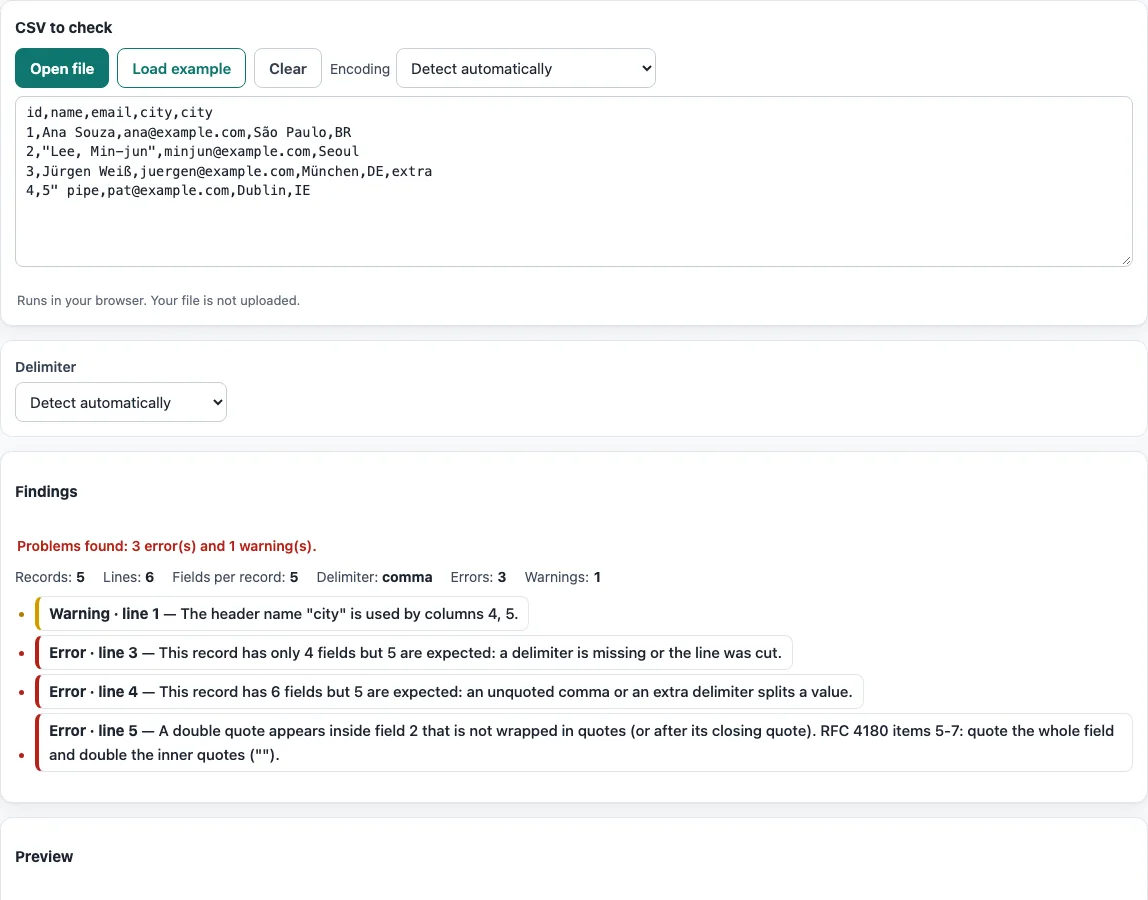
How to use the CSV validator
- Paste your CSV text into the box, press Open file to choose a file, or drop a file onto the box.
- To try the tool first, press Load example to fill the box with sample data. Press Clear to empty it.
- Check the Delimiter setting. The tool detects the delimiter automatically, but you can choose it yourself if your file uses semicolons, tabs or another character.
- If you opened a file, check the Encoding menu. It is set to Detect automatically by default. Change it only if the characters look wrong.
- Read the verdict and the summary, then go through the findings.
- Click a finding to jump to its row in the preview table. The left column shows the line where each record starts.
- Fix the problem in your editor, then paste or open the file again. The result updates as you type or change an option, so you do not need to press a button to refresh it.
The validator only reads your file; it never changes it. Your option choices are kept in the page address, so a bookmarked or shared link reopens the tool with the same settings. The data itself is never put in the address.
How do I check if a CSV file is valid?
A CSV file is valid when it follows the RFC 4180 rules and every record has the same number of fields as the header. The validator checks these rules and sorts its findings into two levels: errors and warnings.
An error means the structure is broken. A quoted field that is never closed swallows everything after it into one field, and a double quote inside an unquoted field is not allowed. A warning does not break the structure, but it often causes import surprises, such as blank lines, duplicate header names, or every record ending with a delimiter, which adds an empty last column. The verdict is “No problems found” when there is nothing to report, “Valid, but N warnings” when the file follows the rules but has warnings, and “Problems found” with error and warning counts otherwise.
Why does my import say the row has too many columns?
The row has too many columns because one record has more fields than the header row. The usual causes are an unquoted comma inside a value or an extra delimiter at the end of a line.
Take this sample:
id,name
1,Ana
2,"Lee, Min",x
3,O"Brien
Line 3 has three fields (2, “Lee, Min” and x), but the header has two. The comma inside the quotes does not count as a separator, but the extra x does. To fix it, either remove the extra value or add a header column that matches.
Line 4 is flagged for a different reason. The name O"Brien has a double quote in an unquoted field. To include a quote, wrap the field in double quotes and write the quote as two quotes: "O""Brien".
What does RFC 4180 require?
RFC 4180 is the standard that describes the CSV format. It requires one record per line, fields separated by commas, and the same number of fields in every record.
- Each record sits on its own line, and lines end with CRLF (carriage return and line feed).
- An optional header line may come first.
- Fields are separated by commas.
- Every record has the same number of fields.
- A field that contains a comma, a double quote or a line break is enclosed in double quotes.
- A double quote inside a quoted field is written as two double quotes.
The validator reports mixed line endings (CRLF, LF or CR) as a warning when a file is opened, because they make a file harder to read reliably.
Why is my CSV showing weird characters?
Weird characters usually mean the file’s bytes were read with the wrong encoding. Set the Encoding menu to the encoding the file was saved in, and the text should display correctly. Without a choice, the tool checks for a byte-order mark, then UTF-16, then valid UTF-8, and otherwise reads the file as Windows-1252.
The warnings point to the cause. Text such as Café instead of Café means UTF-8 text was decoded with the wrong encoding. Replacement characters (U+FFFD) mean some bytes could not be decoded. A file that is not UTF-8 gets its own warning.
To fix the encoding, pick the matching choice from the menu. ISO-8859-2 suits many Central European languages, Windows-1251 suits Cyrillic, Shift_JIS suits Japanese, GBK suits Simplified Chinese, Big5 suits Traditional Chinese and EUC-KR suits Korean.
Frequently asked questions
Is my file uploaded when I validate it?
No. The browser reads the file and processes it on your device. Nothing is uploaded, and you do not need an account.
Is a file with warnings still valid?
A file with only warnings is valid under RFC 4180, and the verdict says so with “Valid, but N warnings”. Warnings still deserve a look, because blank lines or duplicate header names can cause problems when the file is imported.
Why do the line number and record number differ?
A quoted field can contain a line break, and then one record spans several lines. The line number counts physical lines, while the record number counts records, so the two numbers diverge after such a record.
Can I validate a file that uses semicolons or tabs?
Yes. The delimiter is detected automatically, but you can choose it yourself in the Delimiter setting if detection picks the wrong character.
Does the validator fix the problems?
No, it only reports them. Use the CSV editor to change values, the CSV formatter to remove blank rows and stray spaces, or CSV to UTF-8 to repair the encoding.
Can I validate a very large file?
Yes, the whole file is checked in your browser; the preview table shows only the first records, and the findings list shows the first problems when there are very many.
Related tools
- CSV viewer to look at the rows and columns of a CSV file before checking it.
- CSV editor to change the values in a file once the validator has shown where the problems are.
- TSV and CSV delimiter converter to switch a file between tabs and commas.
- Merge CSV files to combine several files with matching headers into one.
- CSV formatter to tidy the layout of a CSV file.
- CSV to UTF-8 to convert a file with the wrong encoding into UTF-8.
- CSV file format to read a plain-language description of how CSV files are structured.