HTML Table to CSV Converter
Paste the HTML of a table (or a whole page) and get its rows as CSV, with merged cells filled in the way you choose.
This tool is an html to csv converter. Paste the HTML of a single table or a whole page source, or open an .html file, and it converts the table to CSV text that you can copy or download.
The conversion runs entirely in your web browser. Files are read and processed on your own device, nothing is uploaded, and the tool is free with no sign-up needed.
Use it when a table sits on a web page, in a saved page, or in an HTML export, and you want those rows in a spreadsheet, a database, or a script. The result updates as you change settings, so you can check the CSV before you copy it. The tool also gives you control over merged cells, line breaks inside cells, empty rows, and the delimiter.
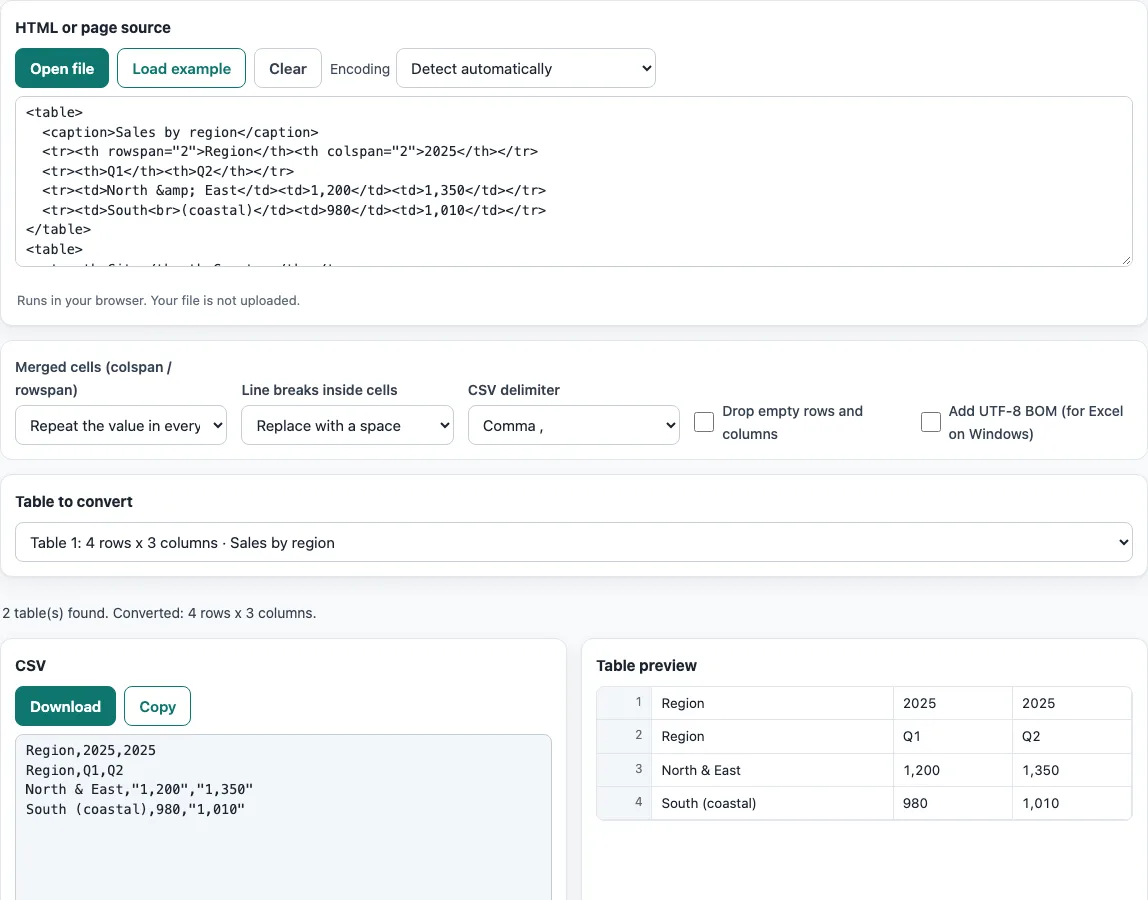
How to use the HTML to CSV converter
- Paste your HTML into the input box, press Open file to choose an .html file, or drop the file onto the box. To try the tool first, press Load example.
- In Table to convert, pick the table you want. Each entry shows its size and caption.
- Under Merged cells (colspan / rowspan), choose either Repeat the value in every covered cell or Keep it in the first cell, leave the rest blank.
- Under Line breaks inside cells, choose whether each
<br>is replaced with a space or kept as a new line. - Turn on Drop empty rows and columns if the table contains spacer rows or columns.
- Set CSV delimiter to the character your target program expects.
- Turn on Add UTF-8 BOM (for Excel on Windows) if you plan to open the file in Excel on Windows.
- Check the result, then press Copy to copy it or Download to save it as a file. Press Clear to empty the input box.
Your option choices are kept in the page address, so a bookmarked or shared link reopens the tool with the same settings. The table data itself is never placed in the address, so only the settings travel with the link.
How do I convert an HTML table to CSV?
Each row of the HTML table (a <tr> element) becomes one line of CSV, and each cell (a <td> or <th> element) becomes one field, separated by the delimiter, usually a comma. The tool reads this structure, removes any tags inside cells, and decodes entities, so & becomes &.
A field that contains the delimiter, a double quote, or a line break is wrapped in double quotes, and any double quote inside the field is doubled. Header cells follow the same rule as data cells, so a header row becomes the first line of the CSV.
How do I get a table from a web page into CSV?
The tool does not fetch web pages by address, so you copy the table’s HTML yourself and paste it in. The steps are:
- Right-click the table in your browser and choose Inspect.
- Right-click the
<table>element in the developer tools panel and choose Copy > Copy outerHTML in Chrome or Edge, or Copy > Outer HTML in Firefox. - Paste the copied HTML into the input box.
If you prefer, save the page and open the .html file instead.
What happens to merged cells (colspan/rowspan)?
A merged cell covers more than one grid position, so the tool needs a rule for the positions it covers. With Repeat the value in every covered cell, the value appears in each covered position. With Keep it in the first cell, leave the rest blank, the value appears only in the top-left position.
Take a header with Region (rowspan 2) and Sales (colspan 2) above the cells Q1 and Q2. With repeat, the rows become Region,Sales,Sales and Region,Q1,Q2. With keep-first, they become Region,Sales, and ,Q1,Q2. Repeat is useful when you plan to filter or pivot the data, because every row keeps its labels. Keep-first matches the look of the original page.
What if the page has several tables?
The tool lists every <table> it finds in the input under Table to convert, so you choose one before converting. Only the selected table becomes CSV. Use the size and caption of each entry to tell similar tables apart, and switch the selection to convert a different one.
Frequently asked questions
Is this html to csv converter free to use?
Yes. The tool is free, and you can use the results for any purpose, including commercial work, with no attribution.
Can I convert a table from a page behind a login?
Yes. The tool does not fetch pages, so it works with HTML that you have already opened in your browser. Copy the table’s outer HTML while you are logged in, then paste it here.
Why do accented letters look wrong when I open a file?
When a file is opened, the Encoding menu decides how its bytes are read. The default, Detect automatically, checks for a byte-order mark, then UTF-16, then valid UTF-8, and otherwise reads the file as Windows-1252. If the text is still wrong, choose the encoding the file was saved in, such as Shift_JIS, GBK, or Windows-1251.
Why does my spreadsheet put everything in one column?
Your spreadsheet may expect a different delimiter. Some regional settings of Excel use a semicolon instead of a comma. Set CSV delimiter to the character your program expects, and the output will split into columns.
Is the HTML I paste sent anywhere?
No. The HTML is read by your browser and converted on your device; nothing is uploaded and no web page is fetched.
Related tools
- CSV viewer: Open a CSV file and read its rows in a table before you use it elsewhere.
- JSON to CSV: Use this when your data is in JSON rather than an HTML table.
- XML to CSV: Use this when your data is stored as XML records.
- CSV to XLSX: Use this when you need an Excel workbook instead of plain CSV text.
- CSV formatter: Use this to clean up or reformat CSV text you already have.
- CSV to HTML table: Use this to go the other way and turn CSV rows into an HTML table.