JSON to CSV Converter
Paste JSON or open a .json file and get a CSV table: nested objects become columns, invalid JSON is pointed out by line and column.
This JSON to CSV tool converts JSON into a CSV file directly in your web browser. Paste JSON into the box, open a file, or drop one onto the box, and the CSV result appears as you type. It is free, needs no account or sign-up, and nothing is uploaded, because the browser reads and processes the data on your own device.
The converter accepts several common JSON shapes, including an array of objects, an array of arrays, a single object, and a wrapper such as {“data”: […]}. Nested objects are flattened into dotted column names, and arrays can be joined into one cell, kept as JSON text, or split into one column per item. You can choose the delimiter, quote every field, and add a UTF-8 byte-order mark so Excel reads accented characters correctly. When the JSON is invalid, the tool reports the line, the column, and a plain reason.
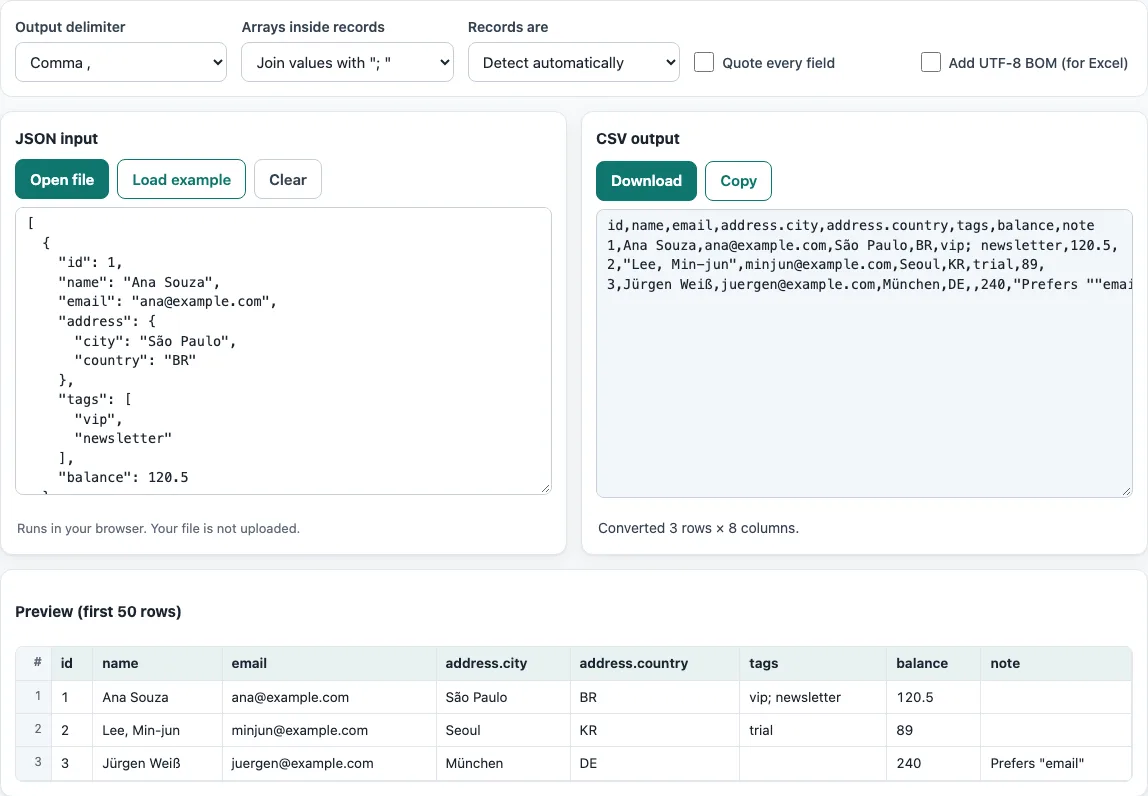
How to use the JSON to CSV converter
- Put your JSON into the input box. Paste it, press Open file to choose a file, or drop a file onto the box. To try the tool first, press Load example.
- If you opened a file and the text looks garbled, check the Encoding menu. It is set to Detect automatically by default. Choose another encoding only when accented or non-Latin characters look wrong.
- Leave Records are on Detect automatically. If the tool picks the wrong part of your JSON as rows, choose The whole JSON is one record or Object keys + values (key column) instead.
- Choose how Arrays inside records are handled: Join values with “; “ (the default), Keep as JSON text, or One column per item (tags.0).
- Pick an Output delimiter: comma, semicolon, tab, or pipe. Turn on Quote every field if the program that reads your file needs every value quoted.
- Turn on Add UTF-8 BOM (for Excel) if you plan to open the file in Excel on Windows.
- Check the preview table, which shows the first 50 rows. Then press Copy to copy the CSV, or Download to save a .csv file named after your input file.
The result updates as you change any setting. Your option choices are kept in the page address, which means a bookmarked or shared link reopens the tool with the same settings. The data itself is never put in the address, so anyone opening the link must paste or open the JSON again.
How do I convert JSON to CSV?
To transform JSON to CSV, the converter finds the list of records in your JSON and writes each record as one CSV row. An array of objects is the most direct case: each object becomes a row, and each key becomes a column header. If your JSON wraps that list in another object, such as {“data”: […]}, automatic detection finds the list, and the Records are setting lets you correct it when it picks the wrong part.
Columns are built from the union of all keys across the records, in the order each key first appears. If a record does not have a key, its cell is left empty. This keeps records with fewer fields aligned with the rest of the table, so the conversion of JSON to CSV never shifts a value into the wrong column.
Values keep the form in which they were written. The number 1.50 stays 1.50, and very long integers are not rounded, which matters for IDs and account numbers. A value that contains the delimiter, a double quote, or a line break is wrapped in double quotes, following RFC 4180, and any double quote inside the value is doubled.
What happens to nested JSON objects and arrays?
Nested objects are flattened into dotted column names, so a child key is joined to its parent key with a dot. For example, the JSON [{“id”:1,“name”:“Ana”,“address”:{“city”:“Paris”},“tags”:[“a”,“b”]},{“id”:2,“name”:“Lee”}] produces the header id,name,address.city,tags. The first record becomes 1,Ana,Paris,a; b, and the second becomes 2,Lee,,, with empty cells where no data exists.
Arrays are controlled by the Arrays inside records setting. The default joins the items with “; " so each array fits in one cell. Keep as JSON text stores the array exactly as JSON, which keeps its structure intact. One column per item creates headers such as tags.0 and tags.1, which suits arrays with a small, fixed number of items.
Frequently asked questions
Why does my JSON fail to convert?
The tool reads JSON with a strict parser, so text that is not valid JSON is rejected. The error message gives the line, the column, and a plain reason, such as an unexpected character, a text value without a closing quote, a raw line break inside a text value, an invalid escape, or a JSON that ends too early. Fix the spot shown and the preview updates.
Will the CSV open correctly in Excel?
Excel on Windows reads accented characters correctly when you turn on Add UTF-8 BOM (for Excel). If your version of Excel expects semicolons between values, choose the semicolon option under Output delimiter. Other programs may handle the file differently, so check the result in the program you plan to use.
Does the tool upload my data?
No. The browser reads your file and processes it on your device. Nothing is uploaded, and you do not need an account or sign-up.
Are numbers changed in the CSV output?
No. Numbers keep the way they are written, so 1.50 stays 1.50, and very long integers are not rounded.
What happens when records have different keys?
The header row contains every key that appears in any record, in the order each key first appears. A record that lacks a key gets an empty cell in that column.
Can I convert a file that is not saved as UTF-8?
Yes. Use the Encoding menu when opening a file. The default, Detect automatically, checks for a byte-order mark, then UTF-16, then valid UTF-8, and otherwise reads the file as Windows-1252. You can also pick ISO-8859-2, Windows-1251, Shift_JIS, GBK, Big5, or EUC-KR.
Related tools
- CSV viewer: Open a CSV file and browse its rows when you want to check data before or after converting it.
- CSV to JSON: Use this when you need to go the other way and turn CSV rows into JSON objects.
- JSONL to CSV: Use this when your data is one JSON object per line rather than a single JSON array.
- XML to CSV: Use this when your source data is in XML instead of JSON.
- CSV to XLSX: Use this when you need an Excel workbook file rather than plain CSV text.
- CSV validator: Use this to check that a CSV file has a consistent structure before you import it.
- CSV formatter: Use this to clean up the layout of a CSV file, such as its spacing and quoting.