Merge CSV Files
Add several CSV files and combine them into one; columns are matched by name, even when the files list them in a different order.
Merge CSV files here: this free tool combines several CSV files into one file. You can combine CSV files into one result by opening them together or dropping them on the box, then copying or downloading the merged output.
The tool runs entirely in your web browser. Your files are read and processed on your own device, nothing is uploaded, and you do not need an account or sign-up.
It matches columns by header name by default, so files with the same columns in a different order still line up. You can also stack files by column position, remove exact duplicate rows, and track which file each row came from. Use it whenever you need a csv merge without copying rows by hand.
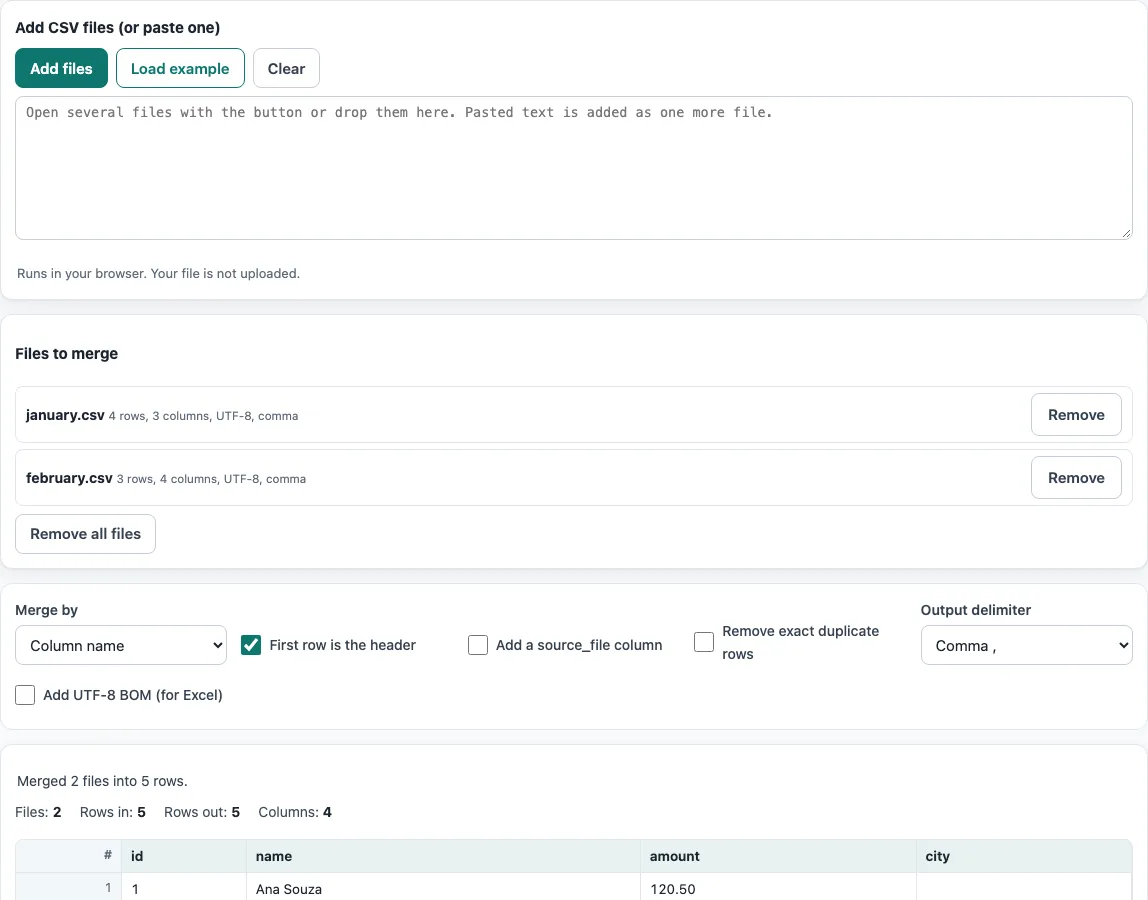
How to use the Merge CSV Files tool
- Press Open file and select several files at once, or drop the files onto the box. To add pasted text instead, paste it into the box and it is added as one more file named
pasted.csv. - Check the Files to merge list. Each file shows its rows, columns, encoding and delimiter. Press Remove next to a file to drop it, or Remove all files to clear the list.
- Choose a Merge by setting. Column name is the default and matches columns by header. Column position stacks rows by position and keeps the first file’s header. Position, first header only does the same without the header warning.
- Turn on Add a source_file column if you want each row labelled with its file name. Turn on Remove exact duplicate rows to drop repeated data rows.
- Turn off First row is the header for files that have no header row.
- Read the summary for files, rows in, rows out, columns and duplicates removed. Set Output delimiter or Add UTF-8 BOM (for Excel) if you need them.
- Press Copy to copy the result, or Download to save it as a file.
The result updates as you change files or options. Your option choices are kept in the page address, so a bookmarked or shared link opens the tool with the same settings. The data itself is never put in the address.
How do I merge multiple CSV files into one?
Open all the files at once, and the tool stacks their data rows into a single table under one header. Each file is read on its own, so you do not need to prepare the files first. Check the Files to merge list to confirm that every file is there and that its rows and columns look right.
The rows of each file are added in the order the files are listed. The first file’s rows come first, then the second file’s, and so on. Each file’s encoding and delimiter are detected separately, so a semicolon-separated file in Windows-1252 and a comma-separated file in UTF-8 can be merged into one UTF-8 file.
What if the files have different columns?
With Column name (the default), the output contains every column found in any file, in the order each column was first seen. A file that lacks a column gets blank cells for that column. For example, a.csv with id,name and 1,Ana plus b.csv with name,id,city and Lee,2,Rome gives id,name,city with rows 1,Ana, and 2,Lee,Rome.
With Column position, the rows are stacked by position and the first file’s header is kept. If a later file has different header names or a different number of columns, the tool shows a warning and pads the rows with blanks. Use Position, first header only if you want the same result without the warning. Choose position-based merging only when every file has the same column layout.
Can I see which file each row came from?
Yes. Turn on Add a source_file column, and the tool writes the name of the file each row came from into a new column. This helps when you need to trace a row back to its original file after the merge.
The source file column is only a label. It does not change the data in the other columns.
Can I remove duplicates while merging?
Yes. Turn on Remove exact duplicate rows to drop repeated data rows. The tool keeps the first copy of each row and removes later copies. The source_file column is ignored when comparing rows, so two identical rows from different files count as duplicates even though their labels differ.
Only exact matches are removed. Rows that differ by even one character, such as a different space or capital letter, are kept. The summary shows how many duplicates were removed, so you can check the result.
Frequently asked questions
Does the tool upload my CSV files?
No. The files are read by your browser and processed on your device. Nothing is sent to a server.
What happens if one of the files is empty?
The tool skips the empty file and shows a warning. The other files are still merged.
What if a file has broken quotes?
The tool names the file so you can find the problem. Check the file with the CSV validator, fix the quotes, and then add the file again.
How do I merge a file that has no header row?
Turn off First row is the header before you merge. The first row is then treated as data, not as column names.
Can I open the merged file in Excel without garbled characters?
Turn on Add UTF-8 BOM (for Excel) in the options before you copy or download the result. The byte-order mark helps Excel read the file as UTF-8.
Is there a limit on how many files I can merge?
There is no fixed limit. All files are read in your browser, so the practical limit is your device’s memory; dozens of files of a few megabytes each merge without trouble.
Does the order of the files matter?
Yes. Rows are added in the order the files appear in Files to merge, and with Column name the column order follows the first file, then any new columns from later files.
Related tools
- CSV viewer: Open and look through a CSV file in a table before or after you merge.
- TSV and CSV delimiter converter: Change a file between tab-separated and comma-separated formats.
- CSV to XLSX: Convert a CSV file into an Excel workbook.
- Split CSV: Divide one large CSV file into smaller parts.
- CSV validator: Check a CSV file for broken quotes and other structure problems.
- CSV formatter: Tidy the layout of a CSV file so it is easier to read.
- CSV to UTF-8: Convert a CSV file to UTF-8 encoding.