Sample CSV Files: CSV File Sample Generator
Pick a dataset, columns and row count and download a sample CSV file; the same seed always gives the same data.
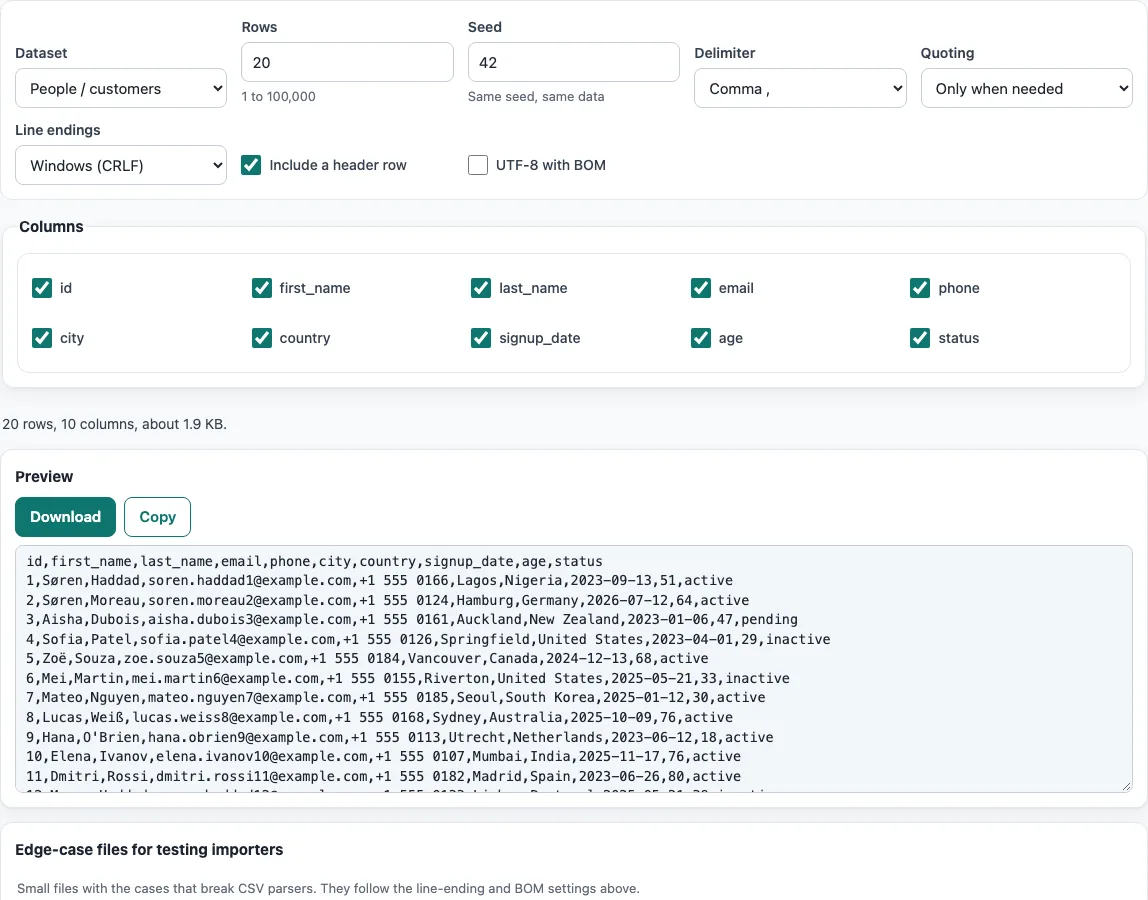
How to use the Sample CSV File Generator
- Choose a dataset: People / customers, Orders / sales, Products, Employees or Addresses.
- Use Columns to select the fields you want. Keep only the ones your test needs.
- Set Rows to a number from 1 to 100,000.
- Enter a Seed. The same seed always gives the same data.
- Choose the Delimiter (comma, semicolon, tab or pipe) and Quoting: only when needed, or every value.
- Choose Line endings: Windows (CRLF) or Unix (LF).
- Turn Include a header row on or off, and turn UTF-8 with BOM on or off.
- Check the preview, which shows the first 200 rows.
- Press Download to save the file with all of your rows.
- For importer tests, scroll to Edge-case files for testing importers, press Show to see a file and download the one you need.
The seed and settings are kept in the page address. Bookmark or share that link to reopen the tool with the same settings and get the exact same file again: the data comes from a pseudo-random generator started from the seed, so the same seed, dataset, columns and row count always give identical rows. Change the seed to get a different set of fictional people, orders or products with the same structure. Nothing is uploaded at any step; the file is built in your browser when you press Download, and the preview never needs more than the first 200 rows.
Where can I download a sample CSV file?
You can create one on this page and download it straight away, with no sign-up and no upload. Choose a dataset, set the rows and columns, check the preview, then press Download to save the whole file.
A sample CSV data file is useful when you need realistic input before your real data is ready. Common uses include testing a database import, practising spreadsheet formulas, learning data cleaning, or writing a tutorial. Because the data is fictional, you can share the file in a bug report or a course without exposing real customer details.
What does a CSV file example look like?
A CSV file is plain text. Each line is one record, and commas separate the values in that record. The first line is usually a header row that names the columns. Here is the start of a People file with a header and one row:
id,first_name,last_name,email,phone,city,country,signup_date,age,status
1,Søren,Haddad,soren.haddad1@example.com,+1 555 0166,Lagos,Nigeria,2023-09-13,51,active
A few rules make a CSV file readable by other programs:
- Every row should have the same number of fields as the header.
- A value that contains a comma, a double quote or a line break must be wrapped in double quotes. A double quote inside such a value is written twice.
- An empty field appears as two commas with nothing between them, such as
,,. - Some files use a semicolon instead of a comma, which is common where decimal numbers use a comma.
- Lines end with CRLF on Windows or LF on Unix-style systems. The line-ending option controls this.
This is the basic sample CSV file format that most import tools expect.
Which sample file should I use for testing an import?
Start with a small People or Orders file with the header row on, so you can check that every column lands in the right field. Then try the edge-case files one by one: quoted commas and line breaks show whether the importer reads quotes correctly, the UTF-8 file shows whether accents and Chinese characters survive, the semicolon file tests a different delimiter with decimal commas, and the leading-zeros file shows whether IDs such as 01234 lose their zeros. Finally, raise Rows to tens of thousands to see how the import copes with volume.
Frequently asked questions
How do I get a large CSV file for testing?
Set Rows to any number up to 100,000. The preview shows only the first 200 rows, but Download creates every row, and 100,000 rows take well under a second to generate.
Can I use the sample data commercially?
Yes. Generated files may be used for any purpose, including commercial software tests, documentation and courses, with no attribution required.
Are the names, emails and phone numbers real?
No. All names are fictional, e-mail addresses use the reserved example.com domain, and phone numbers use the 555-01xx fictional range.
Will I get the same data every time?
Yes. The same seed and settings always produce the same data, so you can rerun a test with identical input.
Can I get files with tricky characters or broken IDs?
Yes. The edge-case files for testing importers include commas and quotes inside quoted fields, line breaks inside quoted fields, accents, Chinese and emoji in UTF-8, semicolon delimiters with decimal commas, empty fields, and IDs that Excel would damage, such as 01234 or 1E10. Each one can be shown and downloaded.
Which delimiters and line endings can I choose?
The Delimiter can be comma, semicolon, tab or pipe, and Line endings can be Windows (CRLF) or Unix (LF). The edge-case files follow the same line-ending and BOM settings.
Related tools
- CSV viewer: open a CSV file and see its rows and columns in a table.
- CSV to JSON: convert your CSV rows into JSON for an app or API.
- CSV to XLSX: turn a CSV file into an Excel workbook.
- Split CSV: cut a large CSV file into smaller parts.
- CSV validator: check a CSV file for structural errors such as uneven rows.
- CSV to SQL: generate SQL statements from CSV data.
- CSV file format: read the rules for quoting, delimiters and line endings in more detail.