Split CSV File
Cut a large CSV into smaller files by row count, equal parts or the value of a column, and download them one by one or as a ZIP.
The CSV splitter cuts one CSV file into several smaller CSV files, and it does this in your web browser. You can split by a fixed number of rows, into equal parts, or by the values in one column. You can paste text into the box or open a file from your device.
Each part can keep the header row, so every file opens and imports on its own. The tool reads and processes your file on your device, and nothing is uploaded. It is free, and no account or sign-up is needed.
The result updates as you change the settings. You can download each part separately or save them all together as one ZIP file.
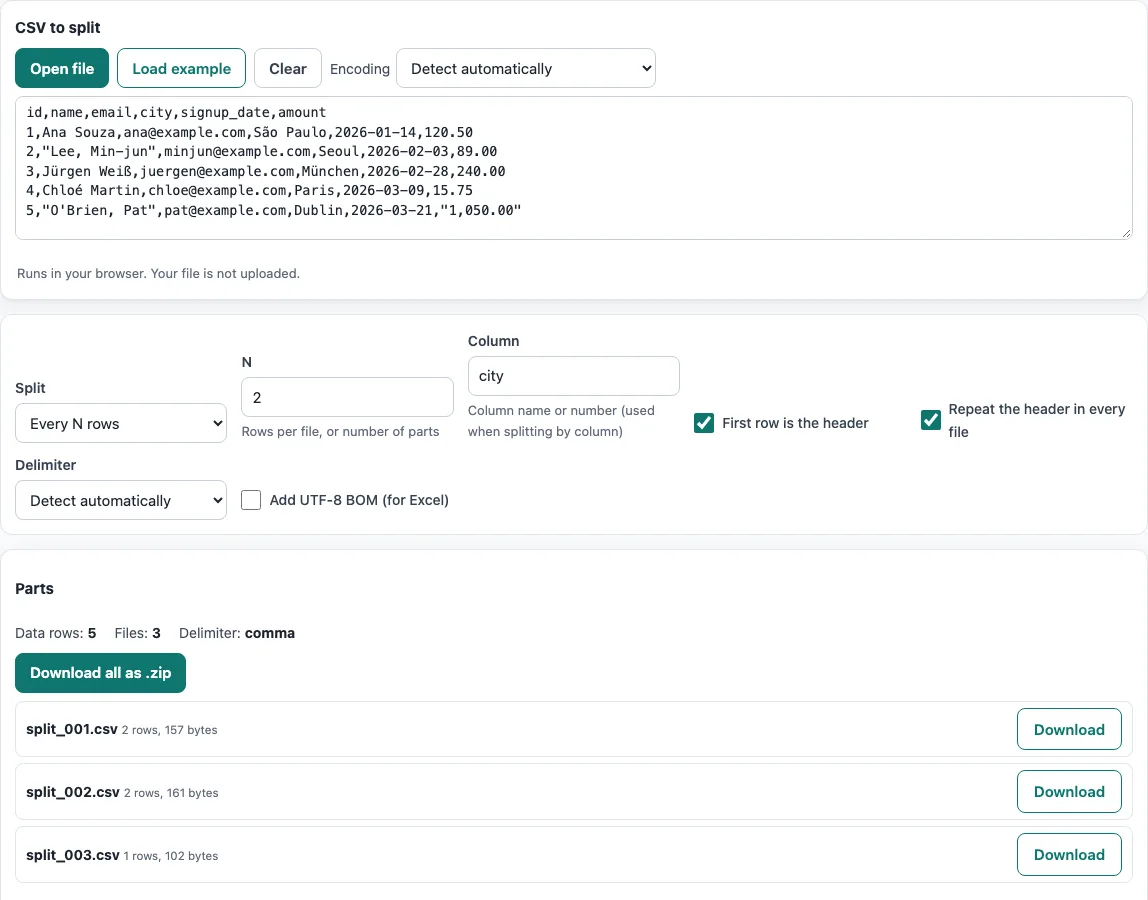
How to use the CSV splitter
- Add your file. Paste text into the box, press Open file, or drop a file onto the box. To try the tool first, press Load example.
- Check the Encoding menu. It is set to Detect automatically by default. Change it only if the text still looks wrong after opening.
- Under Split, choose Every N rows, Into N equal parts, or By the value of a column. Enter the number of rows or parts in the field that appears.
- For By the value of a column, type the header name or the column number in Column.
- Leave Repeat the header in every file on if each part must open alone. Turn off First row is the header if your file has no header row.
- Read the summary, which shows the data rows, the number of files and the delimiter.
- In the parts list, press the download button for a single part, or press Download all as .zip to save every part at once.
The delimiter is detected automatically, but you can choose it yourself. If you plan to open the parts in Excel, turn on Add UTF-8 BOM (for Excel) before downloading. Clear empties the box. Your option choices are stored in the page address, so a bookmarked or shared link reopens with the same settings. Your data is never put in the address.
How do I split a large CSV file into multiple files?
Open the file, then choose how the rows should be divided. Every N rows gives each new file N data rows, and Into N equal parts spreads the data rows across N files of nearly the same size. Splitting is useful when a CRM, e-mail tool or database limits the rows or file size it accepts, or when a file is too large for a spreadsheet. An Excel worksheet holds at most 1,048,576 rows, so a longer file cannot fit on one sheet.
Does each part keep the header row?
Yes, by default. The option Repeat the header in every file is on by default and copies the header row into each part, so every part can be opened or imported on its own. If you turn it off, only the first part starts with the header, and the later parts begin with data rows. Turn it off only when the program you import into expects the header once.
Can I split a CSV by the value of a column?
Yes. Choose By the value of a column and enter the column in Column, either as a header name or as a column number. The tool makes one file for each distinct value and names it after that value. For example, take the rows id,city with cities Paris, Rome, Paris, Oslo and Rome. The output is split_Paris.csv (2 rows), split_Rome.csv (2 rows) and split_Oslo.csv (1 row), and each file starts with the id,city header.
How do I download all parts at once?
Press Download all as .zip. This saves every part in one ZIP file, which is made in your browser. To save a single part, use its own download button in the parts list. The list also shows the rows and size of each file.
Frequently asked questions
Why would I split a CSV file?
Common reasons are an import limit on rows or file size in a CRM, e-mail tool or database, or a file that is too large for a spreadsheet to open. Splitting gives you smaller files that fit under those limits.
Are line breaks inside quoted fields kept intact?
Yes. A field in quotes that contains a line break stays whole, because the tool splits by records rather than by text lines. A record is never cut in half.
Is my file uploaded anywhere?
No. The tool runs entirely in your web browser, so the browser reads the file and processes it on your device. Nothing is uploaded, and no account is needed.
Why do my characters look wrong after opening the file?
Check the Encoding menu. The default, Detect automatically, checks for a byte-order mark, then UTF-16, then valid UTF-8, and otherwise reads the file as Windows-1252. If the text is still wrong, choose the matching encoding, such as ISO-8859-2, Windows-1251, Shift_JIS, GBK, Big5 or EUC-KR.
Why do accented letters look wrong when I open a part in Excel?
Turn on Add UTF-8 BOM (for Excel) before you download. The byte-order mark tells Excel that the file is UTF-8, so the characters display correctly.
Related tools
- CSV viewer: Look at the contents of a CSV file in a table before you decide how to split it.
- JSONL to CSV: Convert JSON Lines data into CSV when your source is not already a CSV file.
- CSV to XLSX: Turn a CSV file into an Excel workbook when you need a spreadsheet format.
- Merge CSV files: Combine several CSV files into one, which is the reverse of splitting.
- CSV validator: Check a CSV file for structural problems before you import it.
- CSV formatter: Clean up the layout of a CSV file so it is easier to read.