Text to CSV Converter (TXT to CSV)
Paste text or open a .txt file, choose how the columns are separated, and download a clean CSV.
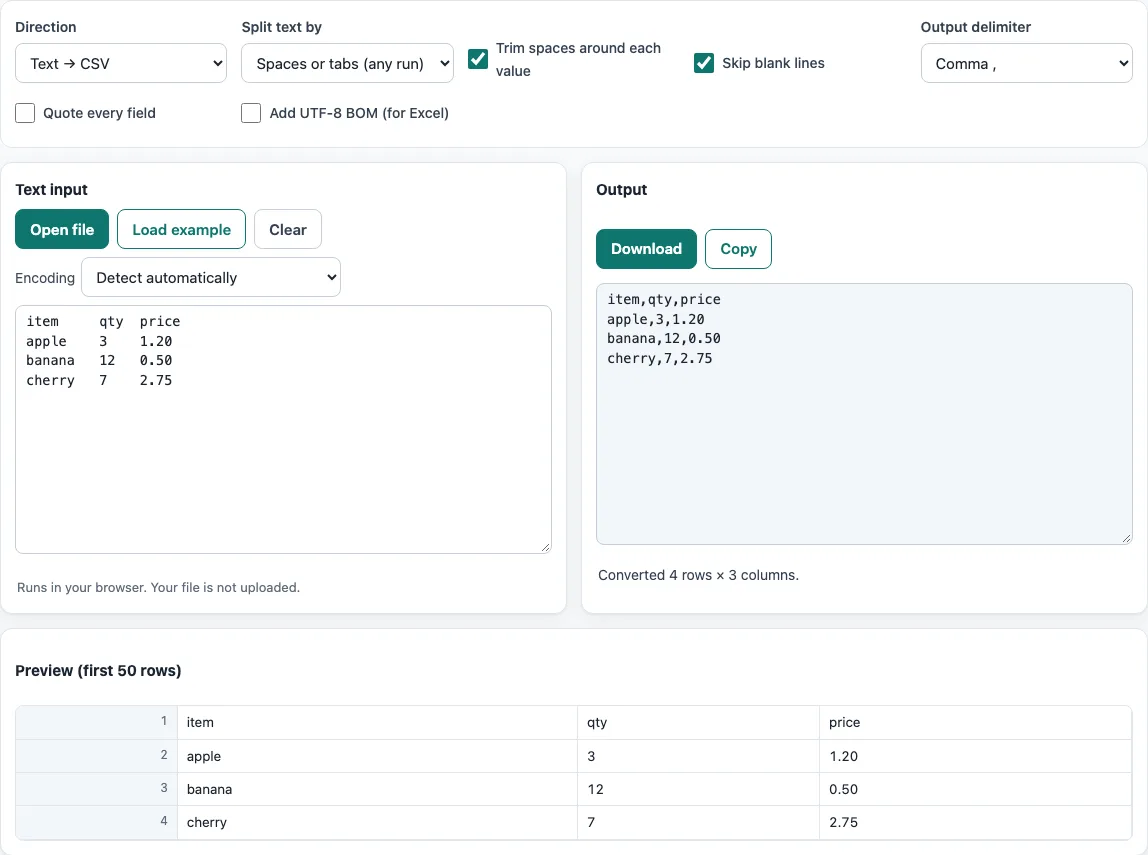
How to use the Text to CSV tool
- Put your text into the box. Paste it, press Open file to choose a file, or drop a file onto the box. To try the tool first, press Load example.
- Under Split text by, choose how values are separated: Spaces or tabs (any run), Tab, A delimiter I type, Fixed-width columns, or One value per line.
- If you chose A delimiter I type, enter the character or characters that separate your values, such as | or ::.
- For aligned reports, choose Fixed-width columns. Leave Column start positions on auto, or type 1-based positions such as 1,9,21. The status line shows which positions were used.
- Turn on Trim spaces around each value and Skip blank lines if your data has extra spaces or empty lines.
- Set Output delimiter, Quote every field, and Add UTF-8 BOM (for Excel) as needed.
- If the text looks garbled, change the Encoding menu from Detect automatically.
- Check the preview of the first 50 rows. The result updates as you change any option.
- Press Copy to copy the result, or Download to save it as a .csv file.
To convert CSV to text, set Direction to CSV → text table, then choose Aligned columns (padded with spaces) or Values joined by the delimiter. Download then saves a .txt file.
Your option choices are kept in the page address, so a bookmarked or shared link reopens the tool with the same settings. The data itself is never put in the address.
How do I convert a TXT file to CSV?
To convert a text document to CSV, open the TXT file in the tool, choose the rule that separates its columns, and download the result as CSV. Plain text has no column structure of its own, so the tool needs a rule to decide where one value ends and the next begins.
The split rule matters. With Spaces or tabs (any run), every run of spaces starts a new value. The example “Name Age City / Ana 34 São Paulo” therefore gives Name,Age,City and Ana,34,São,Paulo, because the space inside “São Paulo” is treated as a separator. If your values can contain spaces, use a delimiter that never appears in the data, or use Fixed-width columns. Fixed-width splitting cuts each line at fixed character positions, which suits reports where each column starts at the same place on every line.
The output must follow CSV quoting rules. Under RFC 4180, a field that contains a comma, a quote, or a line break is wrapped in double quotes, and a quote inside a field is doubled. The tool applies these rules to values it writes.
What is the difference between a TXT and a CSV file?
A TXT file is any plain text, with no required layout, while a CSV file is plain text with a defined structure. In a CSV file, each line is one record and the fields in that record are separated by commas. Spreadsheets and databases can read that structure directly as rows and columns.
A .txt file may hold a sentence, a list, a log, or a table that uses spaces for alignment. The file extension does not make it CSV. What matters is the content: a CSV file needs consistent separators on every line and correct quoting for any field that contains a comma, quote, or line break. Converting text to CSV means adding that structure to text that does not have it yet.
Frequently asked questions
How do I convert fixed-width text to CSV?
Choose Fixed-width columns under Split text by. Keep Column start positions on auto to let the tool find columns that are blank on every line, or type your own 1-based positions, such as 1,9,21.
How do I convert a CSV file to a text file?
Open the CSV file, set Direction to CSV → text table, and choose Aligned columns (padded with spaces) or Values joined by the delimiter. Press Download to save the result as a .txt file.
Why did a value with a space get split into two columns?
The Spaces or tabs (any run) option treats every run of spaces as a separator. Use Fixed-width columns for aligned reports, or use A delimiter I type with a character that does not appear in your values.
Does the tool upload my file?
No. The browser reads the file and processes it on your device. No account or sign-up is needed.
Why do my accented characters look wrong in Excel?
Turn on Add UTF-8 BOM (for Excel) to help Excel read the file as UTF-8. If the characters look wrong when the file opens in the tool, change the Encoding menu from Detect automatically to the encoding your file uses.
Related tools
- CSV viewer — Use it to look at the contents of a CSV file in a table before you edit or convert it.
- TSV and CSV delimiter converter — Use it when your data is tab-separated and you need comma-separated output, or the reverse.
- CSV converter — Use it to change a CSV file’s format or delimiter.
- CSV to XLSX — Use it when you want to turn a CSV file into an Excel workbook.
- Comma separator — Use it to add or remove commas between values in a list.
- CSV file format — Use it to learn the rules for quoting, line breaks, and separators in CSV files.