TSV to CSV Converter (and CSV to TSV)
Switch a file between comma, tab, semicolon, pipe or any other delimiter, with quoting fixed for the new separator.
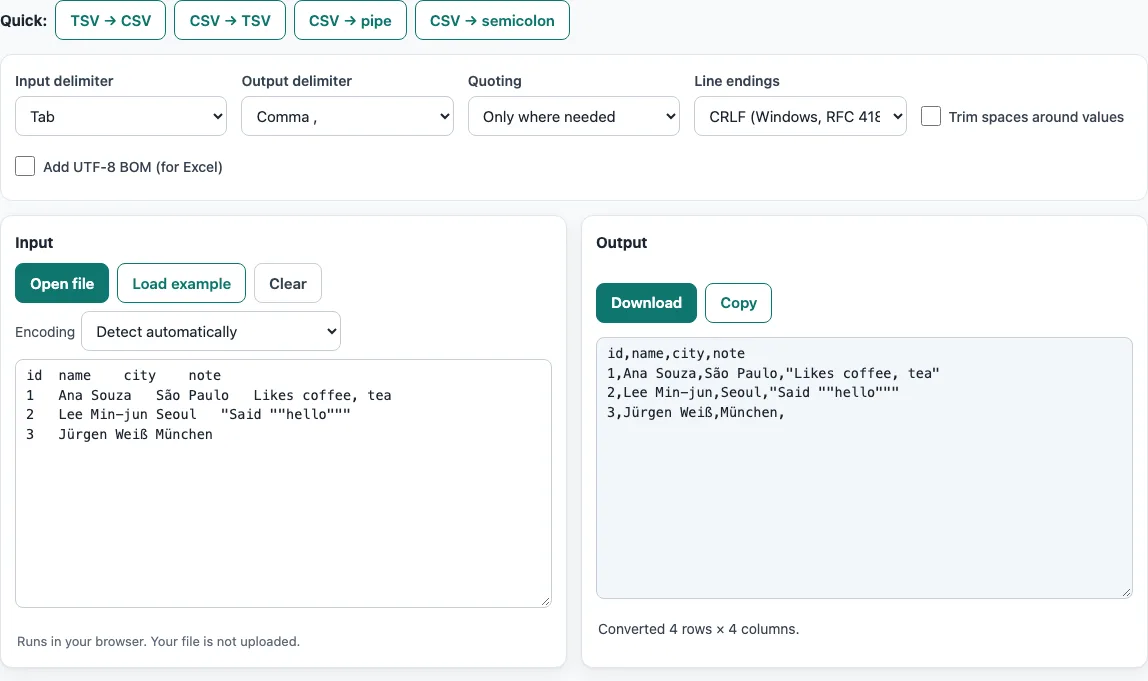
How to use the TSV to CSV converter
- Put your data in the box. Paste text, press Open file, or drop a file onto the box. To try the tool first, press Load example.
- Check the input delimiter. The status line names the detected delimiter. If it is wrong, choose the correct one under Input delimiter. For a character that is not in the list, choose Other character… and type it.
- Choose the output in Output delimiter (comma, semicolon, tab, pipe, or Other character… for any text), or press a quick button: TSV → CSV, CSV → TSV, CSV → pipe or CSV → semicolon.
- Pick a quoting option. Keep Only where needed (the default, RFC 4180), or choose Quote every field or Never quote.
- Pick the line endings: CRLF for Windows (RFC 4180) or LF for Mac and Linux.
- Check the result. It updates as you type or change an option. If you chose Never quote and see a warning, fix those fields before you use the output.
- Press Copy to copy the result, or Download to save it as a file.
The options Trim spaces around values and Add UTF-8 BOM (for Excel) change the output when you need them. If characters look wrong, set Encoding from Detect automatically to the encoding the file was saved in. Your option choices stay in the page address, so a bookmarked or shared link reopens with the same settings. The data itself is never stored in the address.
What is the difference between TSV and CSV?
TSV (tab-separated values) separates fields with the tab character, while CSV (comma-separated values) separates them with a comma. Both store one record per line as plain text that any text editor can open.
Tabs rarely appear inside values, so TSV files usually need no quotes. Commas often appear in names, addresses and numbers, so CSV more often needs quoting. A field that contains a comma is wrapped in double quotes. The tool’s example shows this: the TSV line a<TAB>b,c becomes the CSV line a,"b,c".
How do I change the delimiter of a CSV file?
Change the delimiter by splitting each line at the old separator and joining the fields with the new one. Quoted fields must stay whole, so a separator inside a value is not treated as a split.
This tool does that for you. Set the input delimiter, choose the output delimiter (or press a quick button), and the fields are re-quoted for the new character. After converting, open the result and check that a few rows have the same number of columns.
What is a pipe-delimited file?
A pipe-delimited file uses the vertical bar character (|) to separate fields, so a line looks like name|city|age. It follows the same rules as CSV or TSV, with a different separator character.
Pipes are useful when values often contain commas and tabs, because the pipe rarely appears in ordinary text. To create one here, press CSV → pipe. A pipe-delimited file opened in a program that expects commas will show each line in one column.
Why does my semicolon CSV open in one column?
The program expects a different separator, usually a comma. Semicolon CSV files are common in countries that use a decimal comma, such as Germany and France, because Excel uses the system list separator there. Opened in a setup that expects commas, the fields are not split, so every line lands in one column.
To fix this, import the file and select the semicolon as the delimiter if the program asks. Or convert the file here: set Input delimiter to semicolon and Output delimiter to comma, then press Download.
Frequently asked questions
Can this tool convert CSV to TSV?
Yes. Press CSV → TSV to produce a tab-separated result. Fields are re-quoted correctly for the tab delimiter, so values that contain a quote or a line break stay intact.
Is my file uploaded anywhere?
No. The tool runs in your web browser, so files are read and processed on your device. Nothing is uploaded, and you do not need an account.
What does the Never quote warning mean?
With Never quote, the tool counts fields that contain the delimiter, a quote or a line break. It warns that these fields will split into extra columns or rows when the file is read back. Choose Only where needed to avoid this.
Why do my accented letters look wrong after opening a file?
The file was probably read with the wrong encoding. Leave Encoding on Detect automatically first. If characters are still wrong, choose the encoding the file was saved in, such as Windows-1251 or Shift_JIS.
Does converting change my values?
No. Only the separators and the quoting change. Turn on Trim spaces around values if you also want spaces at the start and end of each value removed.
Can I use a delimiter that is not in the list?
Yes. Choose Other character… and type it; the output delimiter may even be several characters long.
Related tools
- CSV viewer to look at a CSV file in a table before you convert or check it.
- Text to CSV when your data is plain text that needs to become CSV.
- CSV converter for converting a CSV file to another format.
- CSV validator to check that every row has the same number of fields after conversion.
- CSV to UTF-8 when a converted file shows garbled characters.
- Comma separator when you need to set up or change comma-separated output.