Convert XLSX to CSV (and XLS, ODS)
Open an Excel workbook, choose a sheet and download clean CSV; dates come out as YYYY-MM-DD and every sheet can be saved at once.
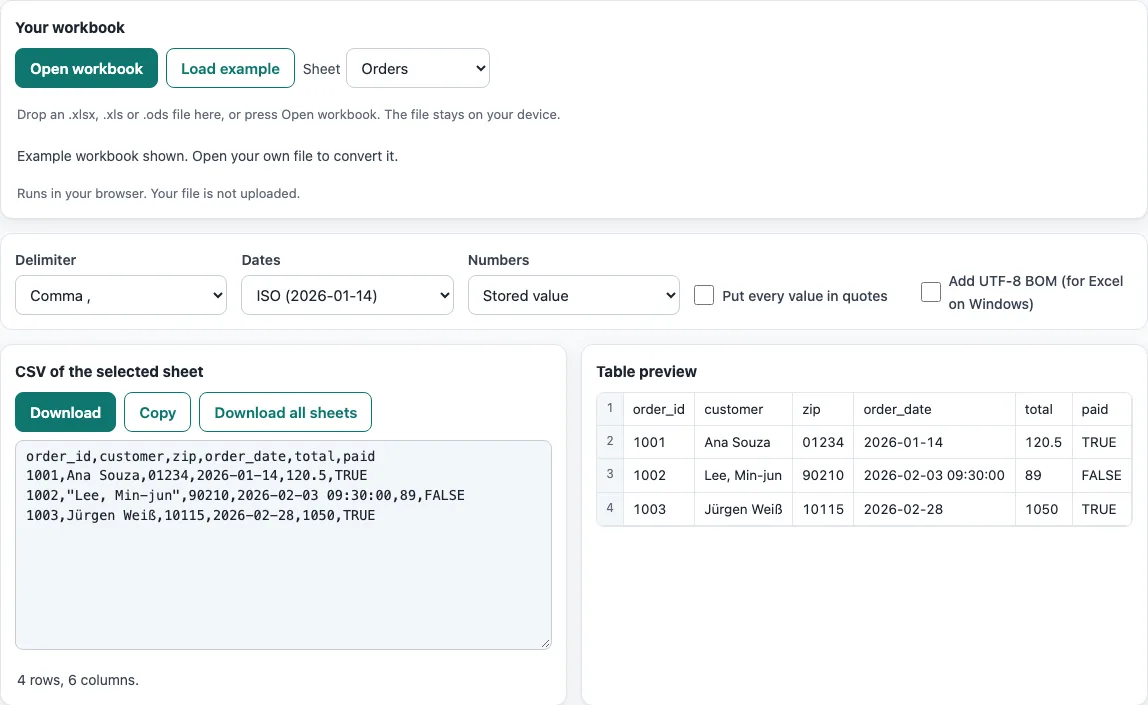
How to use the XLSX to CSV converter
- Press Open workbook, or drop your .xlsx, .xls, .xlsb or .ods file onto the page.
- Wait for the workbook to open. Its sheets are read by your browser, and an example workbook is shown until you open your own file.
- Open the Sheet menu and choose the worksheet you want to convert.
- Under Dates, choose ISO (2026-01-14) for YYYY-MM-DD dates, or As shown in Excel to keep the cell’s display format.
- Under Numbers, choose Stored value for the full number in the cell, or As shown in Excel for the formatted text.
- If needed, set the Delimiter, turn on Put every value in quotes, or turn on Add UTF-8 BOM (for Excel on Windows).
- Check the preview. The result updates as you change each option.
- Press Copy to copy the CSV, or Download to save it as a file.
To save every sheet at once, use Download all sheets. It saves one CSV per sheet, named after the workbook and the sheet. The option choices you make are kept in the page address, so a bookmarked or shared link reopens the tool with the same settings. Your data is never put in the address.
How to convert xlsx to csv?
To convert xlsx to csv, open the workbook, pick the sheet, and download the result. Each sheet becomes its own comma-separated text file, with one row per line and values separated by commas.
A CSV file holds only plain text. It has no formatting, colours, charts or images, and it cannot hold several sheets in one file. Formulas are written as their last calculated value, so a cell showing 42 from a formula is saved as 42. Text cells stay text, which keeps IDs such as 00123 intact. Dates are different: Excel stores them as serial numbers, where 2026-01-14 is stored as 46036. The tool converts these serial numbers into readable dates for you. Numbers can also be saved either as the full stored value or as the text shown in the cell, which is why a rounded or currency-formatted figure may look different in the CSV.
How to convert xls to csv?
To convert xls to csv, drop the .xls file onto the tool and choose a sheet. The steps are the same as for .xlsx files, because the tool reads both formats.
The older .xls format stores sheets, dates and numbers in a different internal layout, but the CSV output follows the same rules. Dates are still written as ISO or as displayed text, and each sheet is still a separate table. If you plan to open the CSV in Excel on Windows and accented characters look wrong, turn on Add UTF-8 BOM (for Excel on Windows). This tells Excel that the file is UTF-8 encoded.
Converting xlsx to csv also loses anything that only exists in Excel: merged cells become one value in the first cell, hidden rows and columns are still written out, and comments are left out. Check the preview before you download.
Each sheet is converted on its own, from its first used cell to its last.
Frequently asked questions
How do I convert every sheet of a workbook?
Press Download all sheets after the workbook opens. The tool saves one CSV file per worksheet, and each file name combines the workbook name with the sheet name. You can also convert one sheet at a time by changing the Sheet menu.
Why do dates or long numbers change when I convert?
Excel stores dates as serial numbers and displays them with a format, so the saved text depends on the Dates setting. Choose ISO (2026-01-14) for a fixed format, or As shown in Excel to match the display. Long numbers, such as card numbers or codes, can change because of the Numbers setting. Stored value keeps every digit the cell holds, while As shown in Excel writes the rounded or formatted text. If an ID should keep its leading zeros, make sure it is stored as text in the workbook.
Does the tool upload my spreadsheet?
No. The file is read by your browser and processed on your device. Nothing is sent to a server, and no account is needed.
Why does the tool show an error for my file?
Damaged files, password-protected workbooks and files that are not spreadsheets cause a clear error message. Remove the password in Excel first if the workbook is protected, then try again.
How do I save just one sheet from Excel instead?
In Excel, go to File > Save As (or Save a Copy) and choose CSV UTF-8 (Comma delimited). This saves only the active sheet. Use the converter when you need every sheet, or when you want more control over dates and numbers.
Are leading zeros kept when I convert?
Yes, if the value is stored as text in the workbook. Text cells stay text, so a code such as 00123 keeps its leading zeros in the CSV. Numbers stored as numbers lose leading zeros, because a number has no leading zeros.
Related tools
- CSV viewer - Open a CSV file and read its rows in a table before you use the data.
- CSV converter - Change a CSV file into another format or layout.
- CSV to XLSX - Turn a CSV file back into an Excel workbook.
- Merge CSV files - Combine several CSV files, such as the sheets you exported, into one file.
- CSV validator - Check a CSV file for structural problems before you import it.
- CSV to UTF-8 - Fix accents in a CSV that Excel saved in an older encoding.
- Split CSV - Cut a very large exported sheet into smaller files.