XML to CSV Converter
Paste XML or open an .xml file; the tool finds the repeating record element and writes one CSV row per record.
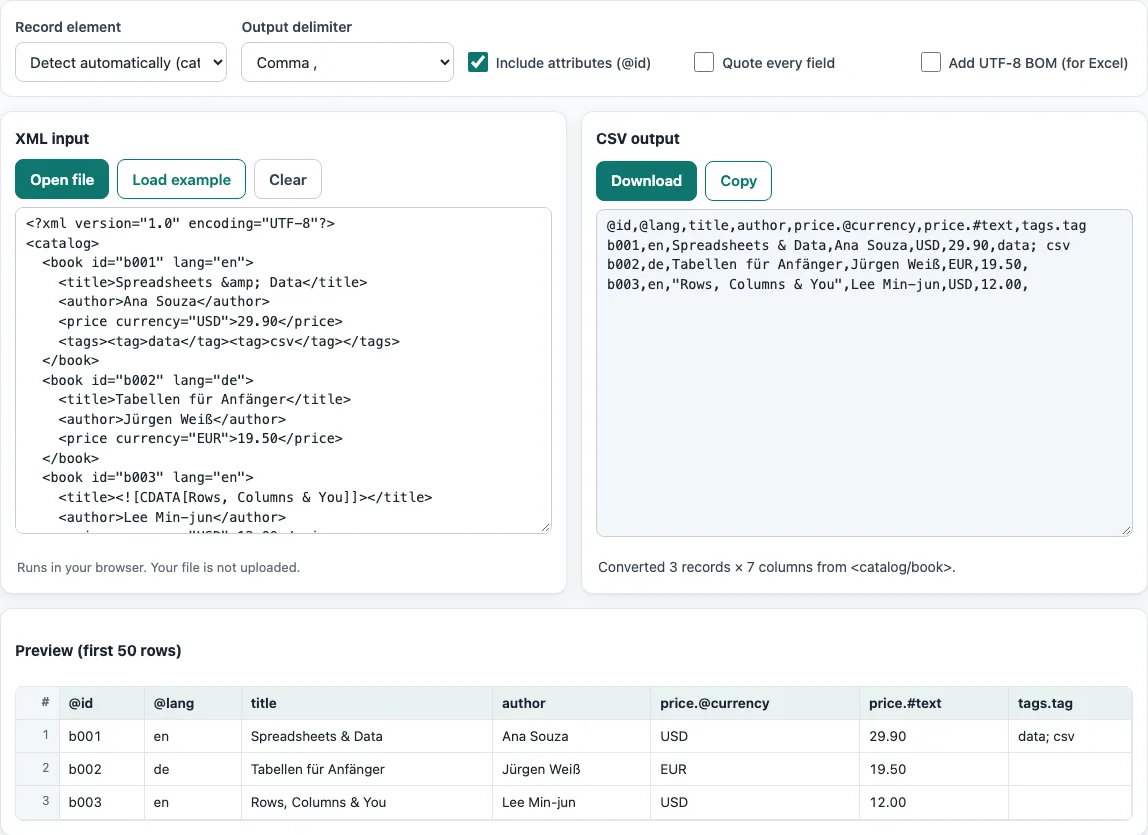
How to use the XML to CSV converter
- Put your XML into the input box. Paste the text, press ‘Open file’ to choose a file, or drop a file onto the box.
- To try the tool first, press ‘Load example’ to fill the box with sample data. Press ‘Clear’ to empty it.
- Check the record element. The tool shows the repeating element that represents one record, with its count, for example books/book. If it picked the wrong element, open the menu and choose another candidate.
- Look at the preview, which shows the first 50 rows. The result updates as you type or change an option.
- Set the options: ‘Output delimiter’, ‘Quote every field’, ‘Include attributes (@id)’ to turn attribute columns on or off, and ‘Add UTF-8 BOM (for Excel)’ if you will open the file in Excel.
- Press ‘Copy’ to copy the result, or ‘Download’ to save it as a file.
If accented or non-Latin characters look wrong after you open a file, change the ‘Encoding’ menu; the file is read again with the new setting. The default, ‘Detect automatically’, checks for a byte-order mark, then UTF-16, then valid UTF-8, and otherwise reads the file as Windows-1252. You can also pick ISO-8859-2, Windows-1251, Shift_JIS, GBK, Big5, or EUC-KR. Option choices stay in the page address, so a bookmarked or shared link reopens with the same settings. Your data is never put in the address.
Which XML element becomes a row in the CSV?
Each record element becomes one CSV row. The tool detects the record element as the shallowest element name that repeats and has attributes or child elements. In the example below, the record element is books/book, so each book becomes one row.
<books><book id="1"><title>A & B</title><author>Ann</author></book><book id="2"><title>C</title></book></books>
This gives the header @id,title,author with the rows 1,A & B,Ann and 2,C,. The second row has an empty author because that book has no author element. The tool counts the records, and the menu lists other candidates if the deeper element is the one you need.
What happens to attributes and nested elements when converting XML to CSV?
Attributes become columns with an @ in front of the name, such as @id. Nested child elements become dotted columns, such as address.city. If the same child name repeats inside one record, its values are joined with ‘; ‘, so two tag elements with the values x and y produce one cell that reads x; y. To leave out the attribute columns, turn off ‘Include attributes (@id)’.
The parser handles text, CDATA sections, comments, numeric character references, and the standard entities &, <, >, ", and '. Entities are decoded in the CSV, so & becomes &.
How do I convert XML to CSV when the records are nested deeper?
If the records sit inside several wrapper elements, for example <export><orders><order>…</order></orders></export>, the tool still finds the repeating order element, because it looks for the shallowest element name that repeats. When two elements repeat, such as order and its item children, pick the one you want as rows in Record element: choosing item gives one row per item.
Text inside CDATA sections is copied as it is, and comments are ignored.
Frequently asked questions
How do I convert XML to CSV?
Paste your XML into the box, press ‘Open file’, or drop a file onto the box. The result updates as you work, so press ‘Copy’ or ‘Download’ when the output looks right.
Can I convert .xml to CSV on a Mac?
Yes. The tool runs in the web browser, so there is nothing to install. The steps are the same as on Windows.
Can I convert a large XML file?
Yes, as long as your browser has the memory for it: the whole file is parsed on your device. Files of several megabytes convert in a moment; very large exports take longer.
Why does my XML give an error?
The tool reports invalid XML with the line and column where the problem starts. The most common cause is a tag that is not closed, so check that every opening tag has a matching closing tag with the same name. A plain & in the text must be written as &.
Does the tool upload my XML file?
No. The browser reads the file and processes it on your device. Nothing is uploaded, and you do not need an account.
Can I open the CSV in Excel, and can I use the output for work?
Yes, turn on ‘Add UTF-8 BOM (for Excel)’ so Excel reads accented characters correctly. Results may be used for any purpose, including commercial work, with no attribution.
Related tools
- CSV viewer: open and inspect a CSV file after you convert it.
- JSON to CSV: use this when your data is in JSON rather than XML.
- CSV to XML: use this to go the other way, from a CSV file back to XML.
- CSV to XLSX: use this when you need an Excel workbook instead of a CSV file.
- CSV validator: use this to check a CSV file for problems after conversion.
- HTML table to CSV: use this when the data is a table on a web page.